

Description
Star Rating Field For Gravity Forms is a free WordPress plugin that adds a fully interactive, click-to-rate star rating input field to any Gravity Forms form. Give your visitors a fast, intuitive way to rate your products, services, content, or experiences — all within your existing Gravity Forms setup, with no third-party services or complex configuration required.
Star ratings are one of the most universally understood feedback mechanisms on the web. Whether you run an e-commerce store, a service business, a restaurant, or an educational platform, collecting star-based ratings through your forms is one of the quickest ways to gather actionable customer insights.
Requires Gravity Forms to be installed and activated on your WordPress site.
Why Use Star Rating Field For Gravity Forms?
Gravity Forms doesn’t include a native star rating input field. This plugin fills that gap — adding a polished, interactive star rating field that integrates directly into the Gravity Forms editor as a standard field type.
You get visual icon styles, a cancel/clear button, required field validation, custom rating notices, single star selection mode, and support for unlimited rating fields per form — all in the free version. No shortcodes, no manual embedding, no third-party accounts.
Free Version Features
-
Interactive Star Rating Field — Add a click-to-rate star input to any Gravity Forms form directly from the field editor. Drag it in, configure it, and save — no coding required.
-
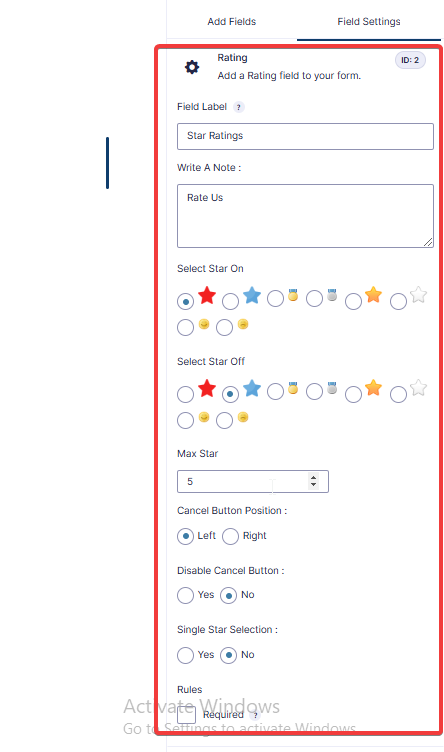
12 Rating Icon Styles — Choose from 12 distinct visual icon styles for the star rating field, including multiple star designs, medal icons, and smiley face icons, with separate “on” (active) and “off” (inactive) states built in.
-
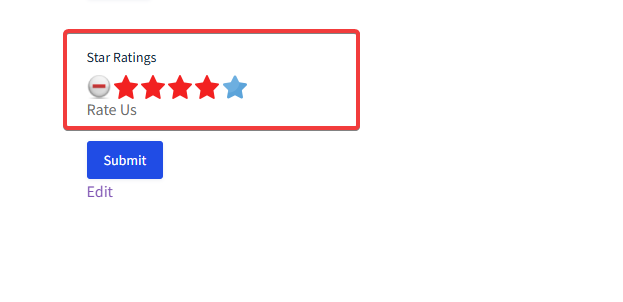
Write A Note / Custom Rating Notice — Add a custom instructional notice or heading text to the star rating field. This text appears alongside the stars to guide users on what they are rating (e.g., “Rate your experience”, “Rate Us”).
-
Cancel / Clear Button — A built-in cancel button lets users deselect or reset their star rating back to zero. Useful when users want to change their mind or undo an accidental click before submitting.
-
Enable or Disable Cancel Button — Toggle the cancel button on or off directly from the field settings, giving you control over whether users can clear their rating on a per-field basis.
-
Single Star Selection Mode — Enable a mode where only the individual star being hovered or clicked lights up, rather than all stars up to that point lighting up cumulatively. Useful for distinct single-choice rating scenarios.
-
Required Field Support — Mark the star rating field as required using the standard Gravity Forms rules setting. If a user tries to submit the form without selecting a rating, the form will not submit and a validation error is displayed.
-
Custom Error Message — Set a custom validation error message for the required star rating field using the Gravity Forms error message setting.
-
Conditional Logic Support — The star rating field supports Gravity Forms’ built-in conditional logic, allowing you to show or hide the field based on the values of other fields in the form.
-
Unlimited Rating Fields Per Form — Add as many independent star rating fields as needed within a single Gravity Forms form. Each field operates independently with its own settings and value.
-
Default Rating Value — A default star score is pre-applied when the field is first added to a form, giving you a sensible starting configuration out of the box.
-
Mobile Friendly and Touch Compatible — The star rating field is fully responsive. Touch-based star selection works correctly on smartphones and tablets of all screen sizes.
-
Lightweight — Built on the jQuery Raty library, keeping the additional page weight minimal.
Pro Version Features
The following features are available exclusively in the Pro version. They appear in the Gravity Forms field editor but are locked for free users.
-
Custom Star “On” Icon — Choose the specific icon image displayed for active or hovered stars (the filled/selected state). Available options include star styles 1 and 2, medal-on, medal-off, star-on, star-off, face-on, and face-off icons, giving you full control over the appearance of selected stars.
-
Custom Star “Off” Icon — Choose the specific icon image displayed for inactive or unselected stars (the empty/resting state). The same set of icon options as the “on” state is available, allowing you to create consistent or contrasting visual pairings between selected and unselected stars.
-
Custom Maximum Star Count — Set the maximum number of selectable stars for the rating field. Instead of the default 5-star scale, you can configure any number — for example, rate out of 3, 7, or 10. Useful for NPS-style surveys, scoring systems, or any use case where a non-standard scale is needed.
-
Cancel Button Position — Control whether the cancel/reset button appears to the Left or Right of the star icons. Lets you align the cancel button with your form’s visual layout.
Perfect For
- Product review and customer feedback forms
- Restaurant, hotel, or service experience rating forms
- Customer satisfaction (CSAT) and NPS surveys
- Event and workshop post-attendance feedback forms
- Online course or content quality rating forms
- Employee, vendor, or supplier evaluation forms
- App or software feature feedback forms
- Any Gravity Forms form where fast, visual, one-click feedback collection is needed
How It Works
- Install and activate the plugin (Gravity Forms must already be active).
- Open any Gravity Forms form in the form editor.
- Find the Star Rating field in the Advanced Fields panel.
- Drag it into your form.
- Configure the field options: label, rating notice, cancel button toggle, single star mode, required, and conditional logic.
- Save the form and embed it on any page or post.
- The star rating field is live — selected rating values are captured with each submission and appear in Gravity Forms entries and email notifications like any other field.
Note: The star rating field is designed to render on published front-end pages. It may not display visually inside the Gravity Forms back-end drag-and-drop editor — this is expected behaviour. Always test your form on a live published page to see the stars in action.
Screenshots
Installation
Automatic Installation (Recommended)
- Make sure Gravity Forms is installed and activated.
- In your WordPress dashboard, go to Plugins > Add New.
- Search for Star Rating Field For Gravity Forms.
- Click Install Now, then click Activate.
Manual Installation
- Download the plugin ZIP file.
- Go to Plugins > Add New > Upload Plugin in your WordPress dashboard.
- Upload the ZIP file and click Install Now.
- Click Activate Plugin after installation.
After Activation
- Open any Gravity Forms form editor.
- Locate the Star Rating field under Advanced Fields and drag it into your form.
- Configure field options (label, notice, cancel button, required, conditional logic).
- Save and test your form on a published page.
FAQ
-
Does this plugin require Gravity Forms?
-
Yes. Gravity Forms must be installed and activated for this plugin to work. The star rating field registers itself as a native Gravity Forms field type and relies on the Gravity Forms framework for rendering, validation, conditional logic, and entry storage.
-
How many star rating icon styles are available in the free version?
-
The free version includes 12 different visual icon styles — covering various star designs, medal icons, and face icons in both active and inactive states.
-
Why don’t the stars show up inside the Gravity Forms form editor?
-
The star rating field is designed to render on the front end of your site. It may not appear visually inside the Gravity Forms back-end drag-and-drop editor. This is expected behaviour. View your form on a published page or post to see the star rating field working correctly.
-
Can I add a message or instruction near the rating field?
-
Yes. The Write A Note setting lets you add a custom notice or instruction text that displays alongside the star rating field, such as “Rate your experience” or “How did we do?”
-
Can I add more than one star rating field to a single form?
-
Yes. You can add as many star rating fields as you need to a single Gravity Forms form. Each field works independently with its own settings, validation, and submission value.
-
Can users clear or reset their star rating?
-
Yes. The free version includes a built-in cancel button that lets users deselect their rating. You can enable or disable this button using the Disable Cancel Button setting in the field options.
-
Can I use conditional logic with the star rating field?
-
Yes. The star rating field supports Gravity Forms’ native conditional logic. You can show or hide the rating field based on the values of other fields in your form.
-
Can I make the star rating field required?
-
Yes. Use the standard Gravity Forms Required option in the field settings. If a user submits the form without selecting a star rating, validation will fail and your custom or default error message will be shown.
-
Can I change the maximum number of stars (e.g., rate out of 10)?
-
Setting a custom maximum star count beyond the default 5 is a Pro version feature. Upgrade here.
-
Can I choose specific star icon images?
-
Custom icon selection for the “on” and “off” star states is a Pro version feature. The free version uses the default icon set automatically. Learn more about the Pro version.
-
Cancel button positioning is a Pro version feature. Upgrade here.
-
Is the plugin mobile-friendly?
-
Yes. The star rating field is fully responsive and supports touch-based selection on all smartphones and tablets.
-
Where can I get the Pro version?
-
Visit (https://topsmodule.com/product/star-rating-field-for-gravity-form/) to upgrade and unlock all Pro features.
Reviews


Contributors & Developers
“Star Rating Field For Gravity Forms” is open source software. The following people have contributed to this plugin.
Contributors
Translate “Star Rating Field For Gravity Forms” into your language.
Interested in development?
Browse the code, check out the SVN repository, or subscribe to the development log by RSS.
Changelog
1.0.0
- Initial release.
- Add interactive star rating field to any Gravity Forms form.
- 12 visual icon styles included.
- Cancel button with enable/disable toggle.
- Single star selection mode.
- Custom rating notice (Write A Note) field.
- Required field validation with custom error message support.
- Conditional logic support.
- Default rating value on field creation.
- Unlimited rating fields per form.
- Mobile and touch-screen compatible.