

Description
Claude and ChatGPT for WordPress. One switch. Full power. Free.
Tell your AI assistant what you need, in plain words, and it happens on your WordPress site:
- “Write a post from these notes and schedule it for Friday.”
- “Approve the new comments and answer the question about opening hours.”
- “Which of my sites have updates waiting?”
AlphaBridge MCP turns your site into an MCP server, the open standard AI assistants use to work with other software. Connect Claude or ChatGPT in about two minutes. You need no account with us, no API key and no extra server.
Watch the whole setup in one minute: Connect Claude to WordPress in five steps
What the free plugin does
- Write and publish. Turn notes into posts and pages, add images, set categories and tags, schedule the date.
- Look after your site. Answer and moderate comments, see pending updates and the health of your site.
- Read what matters. It reads widgets, site settings, SEO fields and pages built with blocks or a common page builder. Ask what needs work.
- Up to 10 sites in one chat. The free AlphaBridge Connect hub brings them into the same conversation.
- Nothing extra to host. AlphaBridge runs inside WordPress, in plain PHP, on ordinary hosting.
40 tools. No license key, no registration, no quotas. The free plugin is complete, not a trial.
Safe by default
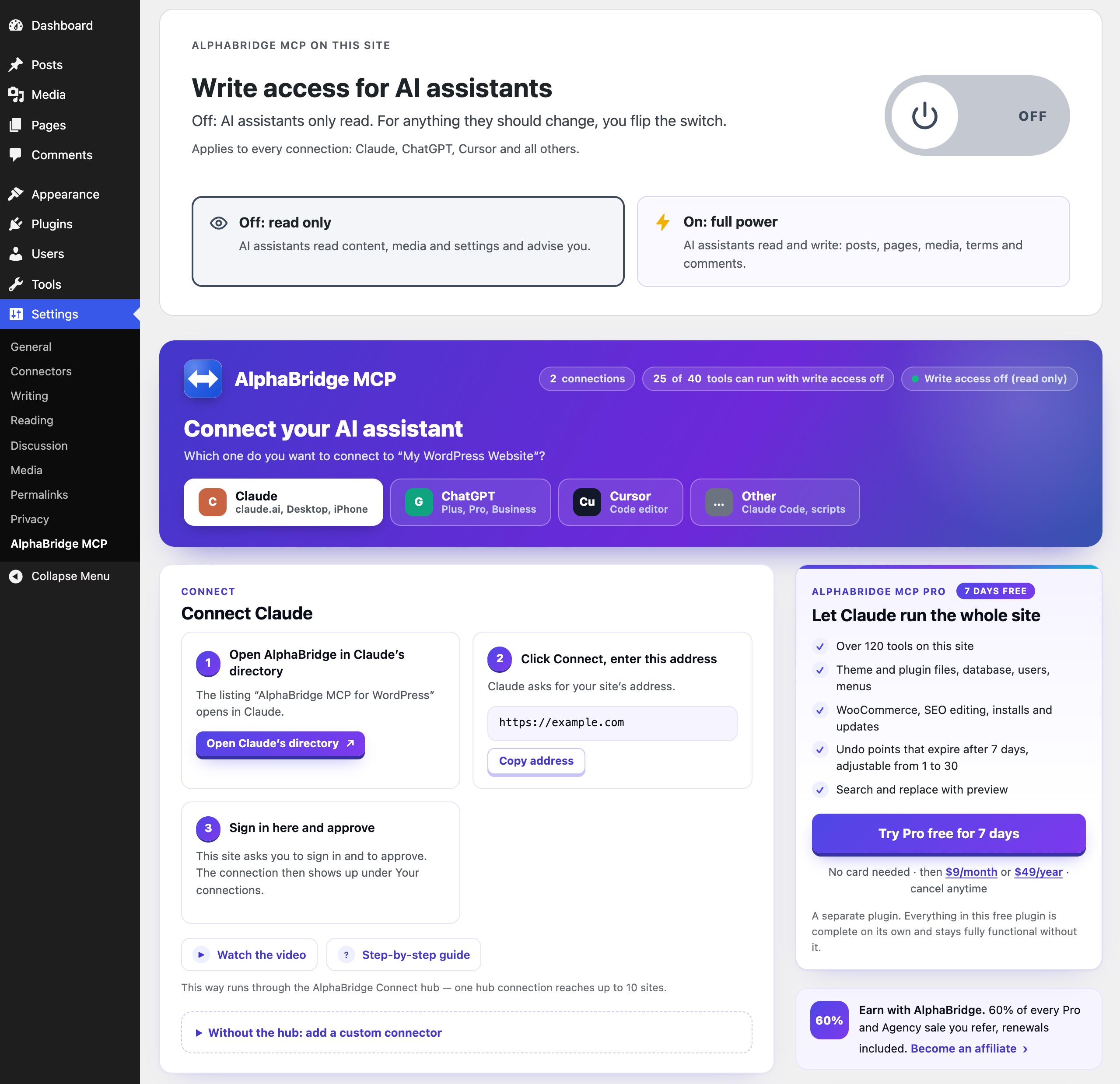
- Read-only until you switch it on. Out of the box the AI can only read. One switch, “Write access for AI assistants”, lets it create, change and delete. One click turns it off again.
- Your WordPress rights apply. Every connection acts as a real WordPress user. What that user may not do, the AI cannot do.
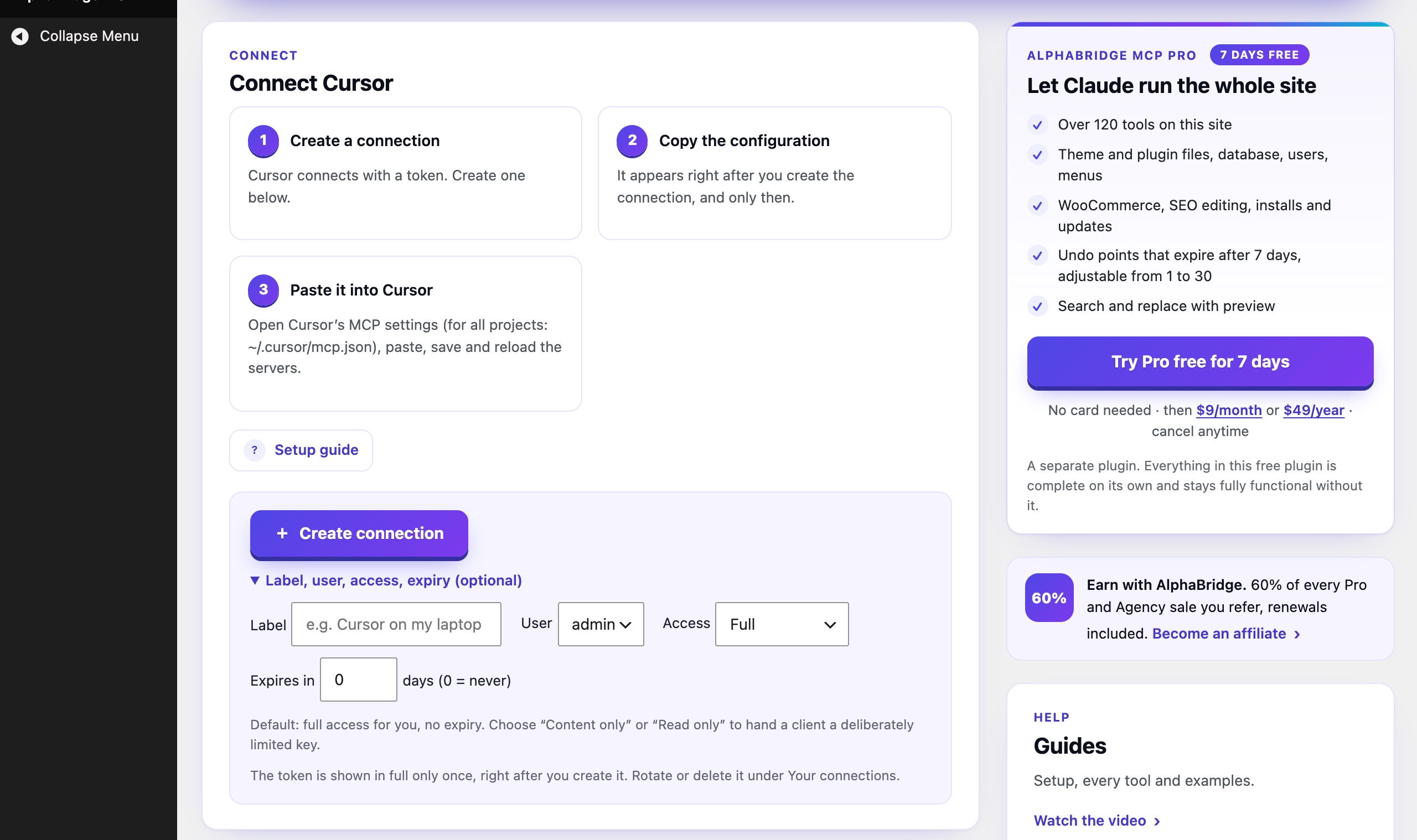
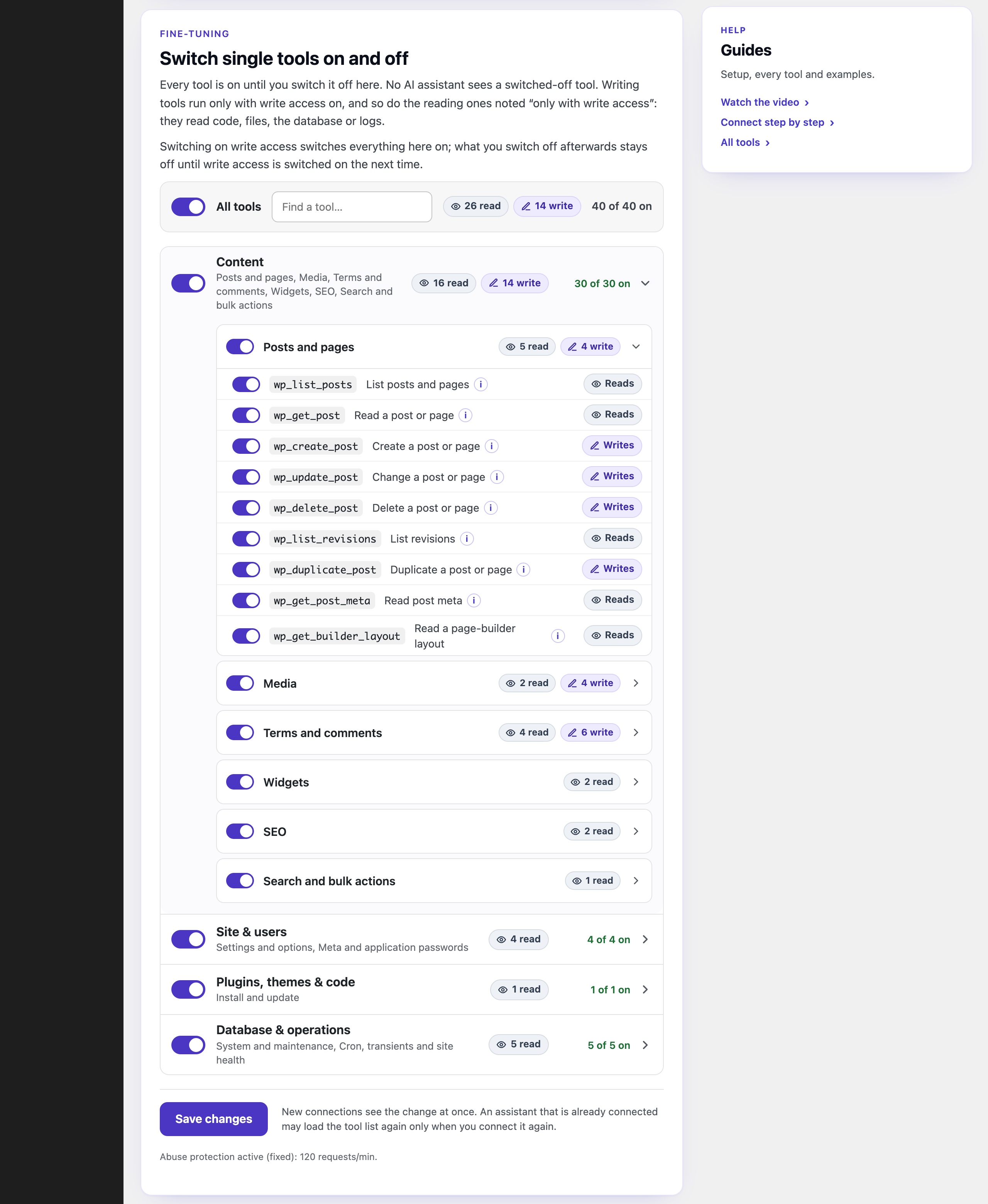
- Rules per connection. Give each app full access, content only or read only, with an optional expiry. Switching write access on turns every tool on. Each connection keeps its access level. Single tools or whole groups can be switched off.
- A clear log. The settings page lists the latest 200 tool calls with time and status. A limit of 120 requests a minute stops runaway request bursts.
- Answers that help. When AlphaBridge refuses a request, it says why and what to do next.
Connect in two minutes
- Claude: pick “AlphaBridge MCP for WordPress” in Claude’s connector directory and approve on your site. No token to copy.
- ChatGPT on Plus, Pro, Business, Enterprise and Edu: add your site as an MCP app and approve on your site.
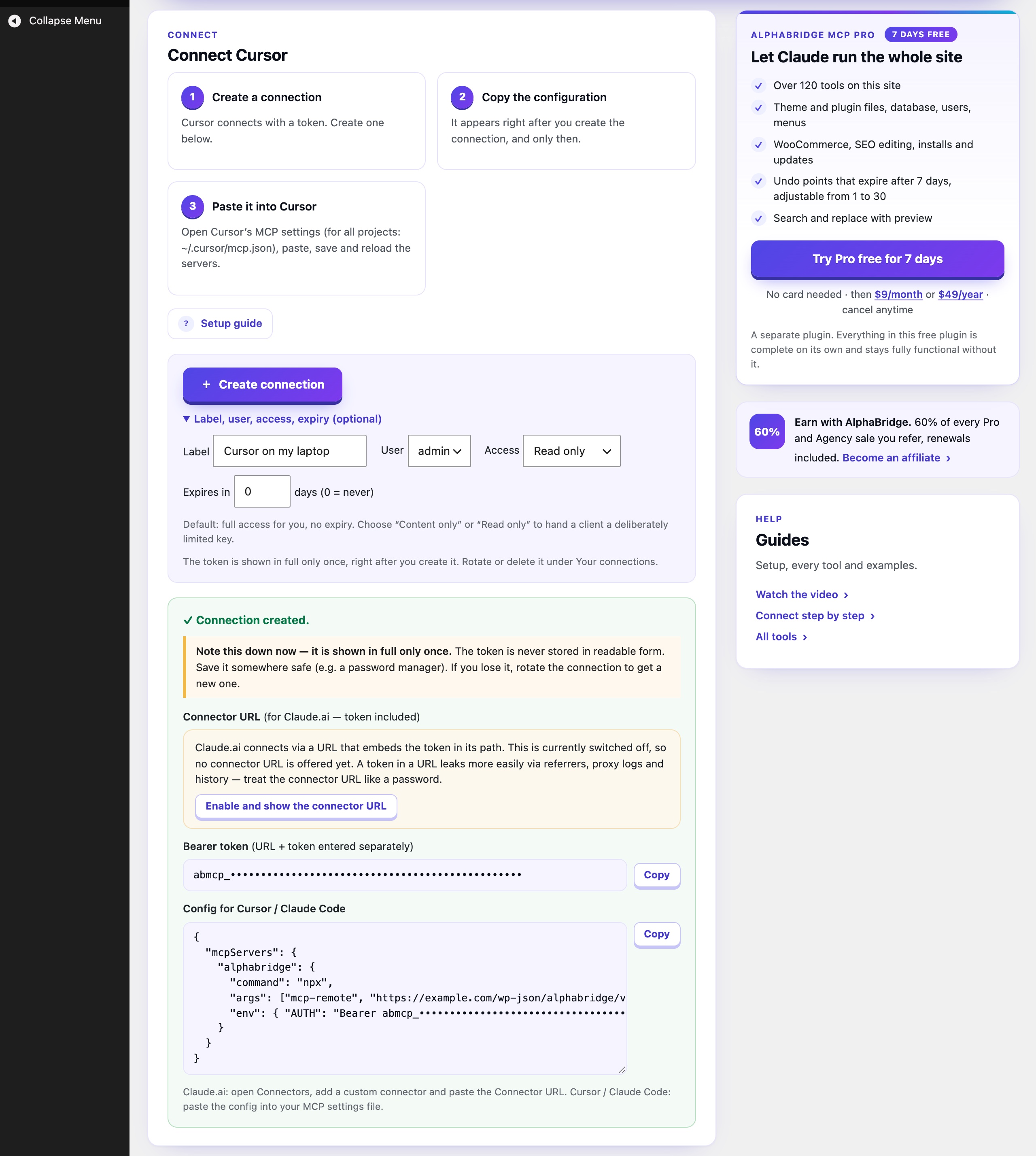
- Cursor, Claude Code and other MCP clients: create a connection in the plugin and paste one ready-made config.
More with Pro
AlphaBridge MCP Pro is a separate add-on. Everything in the free plugin plus the Pro tools, 135 tools on your site:
- Page builders. Change texts, links and images on pages of Elementor and many other page builders, with a preview first.
- Code with a safety net. Edit theme and plugin files and PHP snippets. After each change to active PHP code, Pro tests the site and puts the old version back if it stops loading.
- Undo. One sentence brings an edited page or file back. Its undo points expire after 7 days by default, adjustable from 1 to 30 days.
- Shop, SEO, menus and users. Prices, stock and order status in WooCommerce. SEO titles and descriptions in Yoast or Rank Math. Menus and users by chat.
- Your other plugins. Run the abilities your other plugins offer the AI.
The Agency plan adds Site Deploy: the AI publishes files, themes and whole builds over SFTP onto the server the site runs on. Agency covers up to 10 sites.
Pro can be tried free for 7 days, no card needed. The free plugin stays complete without it. Editions, guides and a comparison with other WordPress MCP plugins: alphabridge-mcp.com
Claude, ChatGPT and the other names mentioned belong to their respective owners. Naming them does not mean they partner with, sponsor or endorse AlphaBridge.
External services
AlphaBridge MCP sends no telemetry and calls no outside service on its own. Three things reach beyond your site, each only when you start them:
- AlphaBridge Connect, optional. If you connect through the hub at connect.alphabridge-mcp.com, it calls your site to set up the connection and to pass on the tool calls you make. It keeps your site’s access key encrypted and passes content through without storing it. Terms and privacy notice.
- The app you connect. Some apps, such as ChatGPT, identify themselves with a small public file. While you approve such an app on your site, your site fetches that file from the app’s address. The request carries no content, cookies or tokens from your site. You can switch this off under ChatGPT “Switch the direct sign-in off” on the plugin’s settings page.
- A file you name. The tool wp_upload_media_from_url downloads the file at the URL you give it.
Screenshots


Installation
- In WordPress, go to Plugins Add New Plugin, search for “AlphaBridge MCP”, install and activate it.
- Claude: open Connectors, find “AlphaBridge MCP for WordPress” in the directory and connect. Enter your site’s address and approve on your own site’s login-protected consent screen. There is no endpoint or token to copy. To connect without the hub, add your endpoint as a custom connector instead.
- ChatGPT: open Plugins, choose Add, then Create MCP app. Paste your site’s endpoint from Settings AlphaBridge MCP as the server URL, choose OAuth and approve on your site.
- Cursor, Claude Code and other clients: under Settings AlphaBridge MCP, create a connection and copy its ready-made config.
- Assistants only read until you allow more. To let them create, change and delete, and read user profile fields, switch on “Write access for AI assistants” at the top of Settings AlphaBridge MCP. Changes then take effect immediately and not everything can be undone. You switch it on at your own risk, so keep a current backup. Switching it on asks you to agree to the Terms of Use.
FAQ
-
Is it really free?
-
Yes. All its tools work without payment, registration or license key, and the plugin does not expire. There are no usage quotas, only a limit of 120 requests a minute that protects your server. You need no API key or AI credits either: AlphaBridge has no AI of its own, and you use Claude or ChatGPT as you do today.
-
Is it secure?
-
Yes, and it starts read-only. Until an administrator switches on write access, every tool that creates, changes or deletes is refused, and so is the reader of user profile fields. Each connection acts as a real WordPress user: what that user may not do, the AI cannot do. It cannot read arbitrary site options, only a fixed list of common settings and the settings of the site’s widgets. The latest 200 calls are logged.
-
What if the AI gets something wrong?
-
Deleted posts and pages go to the trash by default, and WordPress keeps the revisions of edited posts as usual. Write access switches off again with one click. Keep a current backup all the same. Pro adds undo by chat: one sentence brings back an edited page, a page-builder element, a theme or plugin file or a PHP snippet.
-
Which page builders does it read?
-
It reads a page as an outline: its elements in page order, with their visible texts, links and images. Elements it cannot read safely, such as code or forms, are listed as locked, without their content.
- Read: WordPress blocks, Elementor, Beaver Builder, SiteOrigin Page Builder, SeedProd, GenerateBlocks, Kadence Blocks, Spectra, Stackable, Pagelayer, Otter Blocks and CoBlocks (both as plain blocks), WPBakery Page Builder, Divi 4, Avada (Fusion Builder), Flatsome (UX Builder) and Enfold (Avia Layout Builder).
- Read according to the vendors’ documentation: WPBakery Page Builder, Divi 4, Avada, Flatsome and Enfold.
- Recognised, not read: Brizy, Themify Builder, Zion Builder, Live Composer, Cornerstone, Thrive Architect, Bricks, Breakdance, Oxygen 6, Oxygen Classic, BeTheme (BeBuilder), Visual Composer Website Builder, Divi 5 and Etch.
Where a builder shows its own data and the WordPress content is only a copy, as with Elementor, Beaver Builder, SiteOrigin Page Builder and Enfold, the free plugin leaves that copy alone while the builder is active, because a change there would not show, and says how to change the page instead. With Pro, the AI changes texts, links and images right in the builder, with a preview first.
-
Yes. It runs inside WordPress, in plain PHP, over the WordPress REST API. There is nothing else to install on the server. It needs PHP 8.0 or newer, and HTTPS is recommended.
-
Sign-in ends with “Not Acceptable” or mentions Mod_Security
-
Some hosts run a firewall that refuses any request with a web address in the app’s ID, and some apps (ChatGPT, Codex) identify themselves with exactly such an address. The site checks this itself and, where the firewall blocks it, lets ChatGPT and Codex register with the site instead. Then:
- In the app, remove the connector for this site and add it again. The sign-in now goes through.
- If it still fails, add the connector once more, this time with this address instead of your site’s: https://connect.alphabridge-mcp.com/mcp. When you click Authenticate, the free AlphaBridge hub asks for your site’s address. Enter it and approve on your site as usual.
If the site did not notice the firewall (some let requests from the site’s own server pass), switch the direct sign-in off by hand: Settings AlphaBridge MCP ChatGPT “Switch the direct sign-in off”, then add the connector again.
-
A proxy has trouble with the newer MCP revision
-
The site answers apps in MCP revision 2026-07-28 and keeps the older revisions for apps that ask for them. If a proxy in front of the site cannot handle the newer one, a developer switches it off with
add_filter( 'ab_mcp_modern_protocol', '__return_false' );in a small plugin, or by settingmodern_protocolto false in the optionab_mcp_options; the site then answers in the older revisions only. -
Does the plugin send data anywhere?
-
No. It sends no telemetry and contacts no outside service on its own. The three cases you start yourself are listed under External services, at the end of the description.
-
Do I need Pro?
-
Not to get started. The free plugin covers content, media and comments, on as many sites as you like. Take Pro for page-builder texts, code and your shop, with undo for pages and files. Agency is for client sites: all tools and Site Deploy on up to 10 sites. Pro can be tried free for 7 days, no card needed: alphabridge-mcp.com
-
Is there an affiliate programme?
-
Yes. It pays 60% of every Pro and Agency sale you refer, renewals included, monthly in US dollars via PayPal. It is open worldwide to anyone over 18 who does not live in a country under a US embargo, customer or not: apply on https://alphabridge-mcp.com/affiliates, where you also find the terms, banners and ready-made texts. The commission comes from sales of the separately sold Pro and Agency editions. This free plugin itself earns none, and it works fully without joining.
Reviews
ഈ പ്ലഗിന് റിവ്യൂകൾ ഒന്നുമില്ല.
Contributors & Developers
“AlphaBridge MCP – Connect Claude and ChatGPT to WordPress” is open source software. The following people have contributed to this plugin.
Contributors
Translate “AlphaBridge MCP – Connect Claude and ChatGPT to WordPress” into your language.
Interested in development?
Browse the code, check out the SVN repository, or subscribe to the development log by RSS.
Changelog
4.6.4
- Everything about connecting sits in one place: the connect card. The settings moved up from a card of their own at the foot of the page into the panel of the app they concern — the sign-in for apps under Claude and under ChatGPT (there with the status line for ChatGPT and Codex, «Check again» and the link to switch the direct sign-in off), the connector address with the token under Cursor and «Other», next to the token form. Each has its own Save.
- Claude: both ways in, side by side, nothing folded away. «Through the hub» (one connection, up to 10 sites) with its three steps, and «Directly» (this site only) with two: add a custom connector in Claude with this site’s address, then sign in here and approve.
4.6.3
- Sign-in works behind firewalls that block app IDs in address form. Some hosts (Bluehost with Mod_Security) answer «406 Not Acceptable» as soon as an app’s ID is a web address, which is how ChatGPT and Codex identify themselves. The site now checks this itself with one request to its own sign-in page and, where the firewall blocks it, stops offering that way, so apps register with the site instead; the ChatGPT panel and the setting say so. The check runs when the settings page opens (again after six hours), on every save of the settings and on «Check again». Reported in the support forum on 12 October 2026, thank you.
- The settings for how apps connect sit on one card: two settings and a status line for ChatGPT and Codex. «Sign-in for apps» and «Connector address with token» replace the three folded «advanced» sections, each with one sentence on what it is for; the status line says whether ChatGPT and Codex sign in directly or register with the site, with «Check again» and a link to switch the direct sign-in off. The switch for the MCP revision 2026-07-28 leaves the page: the setting keeps its value, and the
ab_mcp_modern_protocolfilter stays (see FAQ). - FAQ: «Sign-in ends with “Not Acceptable” or mentions Mod_Security».
4.6.2
- Tools that can publish now say so to AI clients. Eight tools can make content public on your site: creating and updating posts, replying to and approving comments, uploading media from a file or a web address, changing the texts of media, and renaming categories and tags. All eight now report
openWorldHint: trueanddestructiveHint: true, because what is published cannot be taken back once it is out: a published post pings other sites and may go to newsletter subscribers, a reply reaches the commenter at once, and an uploaded file can be downloaded by anyone. An AI client can then ask you before it runs them. Reading, drafts, new categories and tags, and deleting stay inside the site as before. - This follows OpenAI’s review rules for tool hints. No setting changed.
4.6.1
- ChatGPT connects directly again while «Accept apps with a metadata document» is on. ChatGPT identifies itself with a metadata document that prefers the token method private_key_jwt and also lists «none» among the methods it supports. The plugin refused any document whose preferred method was not «none», so ChatGPT could not connect to the site directly. It now takes «none» from that list and treats the app as a public client, with PKCE as before. A document that asks for a shared client secret, or that offers no «none» at all, is still refused, and so is a list that does not contain the document’s own preferred method. Reported in the support forum on 3 October 2026, thank you. No setting changed.
4.6.0
- Switching on write access asks for two boxes, the second for the Terms of Use. The notice says, as before, that changes take effect immediately, that not everything can be undone and that write access is switched on at the site owner’s own risk, and now also that statutory rights and the liability rules of the Terms of Use remain unaffected. With the first box the administrator agrees to how write access works; with the second, to the Terms of Use of CultureClub Kulturagentur UG (haftungsbeschränkt), version of 7 October 2026, which the dialog links. Neither box is ticked in advance. Without a paid licence both are required; with a valid licence of Pro or Agency the second is optional, because the terms already apply from the purchase. Switching on by code is no agreement to the terms. The button reads «Agree and switch on write access».
- No box confirms a fact any more («Understood», «I have a current backup»): both say what the administrator agrees to.
- The notice and the boxes come in English and German only, as the Terms of Use, and from the plugin itself: a language pack does not change them. Other languages read English. The link goes to the German version of the terms on a German site.
- The record of a switch-on also holds the wording of the second box, the address it linked, whether and to which version of the terms the administrator agreed, and the edition. It stays on the site; nothing is sent anywhere. The notice is version 3; a record of version 1 or 2 stays valid.
- Where write access was switched on before this version, it stays on. The settings page says once that the agreement to the terms is asked for the next time write access is switched on; «Dismiss» hides it for this version of the terms.
4.5.3
- All visible texts of the plugin come in German on a German site (de_DE, de_DE_formal, de_AT, de_CH, de_CH_informal): the settings page with its cards, notices, tables, buttons, tooltips and the texts of its script; the consent screen with its access levels and its error pages; the description in the plugin list; the log, whose status and time now follow the language; and the refusals and error messages of the tools that an assistant passes on. The plugin brings these files itself; a language pack from translate.wordpress.org still takes precedence for every text it has.
- Stays English on purpose: what is written for the assistant — the descriptions of the tools and their parameters (shown behind the «i» in the fine-tuning), the server instructions and the notes on single elements in the outline that
wp_get_builder_layouthands over — and the protocol’s own errors (JSON-RPC, and the error codes the OAuth standard sends to an app). The names and descriptions of abilities come from the plugins that offer them. - The reasons why an app’s metadata document is refused, the note of
wp_seo_detectabout AIOSEO and the status and time in the log are translatable now. The plugin header names/languagesas its Domain Path, so the plugin list shows the description in German also while the plugin is inactive. - A command for Claude Code. After a connection is created, the settings page shows a ready-made
claude mcp add --transport http …command with the endpoint and the token, as the guide on alphabridge-mcp.com does. The config withmcp-remoteis now labelled for Cursor only: in Claude Code,${AUTH}in that config stayed empty and/mcpreported it missing. - The note under the fine-tuning names the rate limit without «(fixed)».
- The readme says what the audit log keeps: the latest 200 tool calls.
4.5.2
- The request for a review is a short strip at the foot of the coloured header of Settings AlphaBridge MCP instead of a WordPress notice. As before it appears only there, once the site has used the plugin for at least 14 days and made at least 50 successful tool calls, names exactly these figures and asks everyone the same way. «Write a review» now counts as an answer: the strip does not come back afterwards, as after «Don’t show again». Its texts, and «(opens in a new tab)» for screen readers, come in German with the plugin, and so do the texts of the header around it that were still English on German sites («Connect your AI assistant», the question below it and the hints on the assistant buttons).
- A «Settings» link in the plugin list. The plugin’s row under Plugins now starts with «Settings», which opens Settings AlphaBridge MCP, as WordPress plugins usually do. It shows only to users who may open that page, and it comes in German with the plugin (de_DE, de_DE_formal, de_AT, de_CH, de_CH_informal).
4.5.1
- The answer to a tool of AlphaBridge MCP Pro, and the paragraph about Pro in the server instructions, state facts only. A call of a tool that belongs to the separate AlphaBridge MCP Pro or its Agency plan is answered with the edition it belongs to and the page that describes the editions and their tools (https://alphabridge-mcp.com/docs). The steps to install Pro, the request to the assistant to point the person to Pro and the link to the prices are gone: ChatGPT’s app directory allows saying that a feature is missing, not promoting an upgrade. The server instructions of a site without Pro list what is not on the site and name the same page. No tool, permission or setting changed.
- The description says which reading tool waits for write access. It said that with write access off assistants could not read code, files, the database, logs or credentials; this plugin has no tool for any of these. Its only reading tool that waits for write access reads user profile fields (
wp_get_user_meta). The description, the installation steps and the FAQ now say so. The description also says that each connection keeps its access level (Full, Content or Read only) when write access is on. - The directory page is shorter: a shorter name and short description, the description in short paragraphs, the AlphaBridge Connect hub under its own heading (up to 10 sites in one chat, free, in every edition) and AlphaBridge MCP Pro as a list. «fast, stable» and «faster and more stable» are gone from the plugin’s description and the readme; nothing measured backs them. The captions of screenshots 1 and 5 match the current settings page.
- The new sentence of the answer to a Pro tool comes in German with the plugin (de_DE, de_DE_formal, de_AT, de_CH, de_CH_informal); the two sentences with the steps to install Pro are gone.
- A token in the query string or in the request body is never accepted, also with the connector URL switched on. With the connector URL on,
/mcp?token=…and atokenfield in the body were taken as the token too; only the path/mcp/<token>was meant. Now only the path counts, as the FAQ says. Header authentication is unchanged. - The server instructions of a site without Pro name changing the texts, links and images of page-builder elements as not on this site, instead of the texts of page-builder pages: reading them with
wp_get_builder_layoutworks on every site. The list of what AlphaBridge MCP Pro adds says that its test requests run after PHP code is saved and catch the fatal errors they hit, not every error.
4.5.0
- The main switch «Write access for AI assistants» replaces the box with the modes Read and Full. It sits where the box was, the first thing on Settings AlphaBridge MCP, and holds for every connection — Claude, ChatGPT, Cursor and all others. Off (as every site starts) assistants only read; on, they read and write with full power. The page calls the states «write access off (read only)» and «write access on (full power)»; the internal names (
read,full), the option and the PHP interface stay as they were. Switching on opens a small window at the switch with the notice and a box to tick (without JavaScript the same fields stand in the page); switching off takes one click. The notice is new (version 2): changes take effect immediately, they can create, change and also delete, not everything can be undone, at your own risk, a current backup. A confirmation of the notice of 4.4.0 stays valid; nobody has to confirm again. - Switching on write access switches everything on. Every tool is on afterwards, also one that was switched off before or kept off from a version before 4.4.0. Single tools can be switched off under Fine-tuning; that holds until write access is switched on the next time. Only a switch from off to on does this: a second click from an old tab while write access is on changes nothing. An update alone resets nothing.
- The fine-tuning, compact and open. Four main groups, seven at most with the Pro add-on (Content; Site & users; Plugins, themes & code; Database & operations; Shop; Undo; Abilities of other plugins), each with its switch, its tool groups and how many of its tools are on; every tool group opens its tools. Every tool shows a short name in your language next to its name in code, and its description for the assistant behind an «i»; the search finds a tool by either and by the names of its groups. The only badges left are «Reads» and «Writes», each with a symbol; readers that wait for write access say «only with write access». One button saves everything.
- Refusals of the switch, the access level, the role and the fine-tuning lead to the place where they are changed. When write access is off, the connection’s access level does not include a tool, the account lacks the capability, or a tool is switched off under Fine-tuning, the answer says why in one sentence, what the person can do, gives a direct link (to the switch, the fine-tuning, the connections or the users) and asks the assistant to pass it on kindly and try again afterwards. The same holds where a tool itself refuses because the account’s role does not allow it — this post, this user’s meta, publishing: the answer adds that an administrator can change the account’s role under Users, with the link.
- Tools of AlphaBridge MCP Pro are named as such. A call of a tool that belongs to the separate AlphaBridge MCP Pro or its Agency plan is answered with what it is and where it comes from instead of «Unknown tool», and the server instructions of a site without Pro say in a short paragraph what Pro adds. Nothing in this plugin is locked or limited by it.
- New connections start with the full access level. The consent screen preselects «Full», and says that the switch for write access on the site decides whether assistants may write; an approval without a choice gets the full level too. Connections made before keep their level.
- The texts of the switch and the fine-tuning, the short names of the tools and the refusals for the account’s role come in German with the plugin (de_DE, de_DE_formal, de_AT, de_CH, de_CH_informal); dates on the settings page follow the language.
- For add-ons: the action
ab_mcp_reset_switches(write access switched on), the filtersab_mcp_unavailable_tool_messageandab_mcp_tool_label(a tool’s short name), the actionab_mcp_fine_save(one save for the fine-tuning), the helpersAB_MCP_Admin::fine_row_html(),fine_sub_html(),count_badges()andaddon_text(), and the classAB_MCP_Guidancewithrole_refusal().
4.4.0
- Page builders:
wp_get_builder_layoutrecognises the builder a page was made with and reads the page as an outline. For an account that may edit the post, it lists the page’s elements in page order, each with its id, type and parent, and with its visible text, heading, HTML, link and image fields. Code, forms, global parts and elements it does not know are listed as locked, with the reason and without their content; the raw builder data, styling, attributes and scripts are never handed out. The answer also names the builder, whether it is active, what the site shows (storage), where copies of the page are kept, a hash of the layout to compare before and after a change, and the tools that change the page with a visible effect (write_via). Read, as of 1 October 2026: WordPress blocks, Elementor (classic and atomic elements), Beaver Builder, SiteOrigin Page Builder, SeedProd, GenerateBlocks, Kadence Blocks, Spectra, Stackable, Pagelayer, Otter Blocks and CoBlocks (both as plain blocks), WPBakery Page Builder, Divi 4, Avada, Flatsome and Enfold — the last five from the vendors’ documentation and code, not yet checked on a live installation, which the answer says. Further builders, among them Bricks, Breakdance, Oxygen and Divi 5, are recognised but not read; the dated list is in the FAQ. An Elementor element that Elementor has not registered is listed as locked with the way: the plugin that provides it; for a container while Elementor’s Container feature is off, the switch under Elementor › Settings › Features; for an atomic element while Elementor’s Atomic Editor is off, the switch under Elementor › Settings › Atomic Editor. A guided prompt,edit_builder_page, takes an assistant through recognising, reading, previewing, applying and checking a change. wp_get_postsays which page builder a post was made with. The new fieldbuilt_withnames the builder, whether it is active, its version, what the site shows and the tools that change the page with a visible effect, with a note where post_content is not simply the page.wp_list_postsfilters by page builder.built_withtakes a builder id aswp_get_postnames it,anyfor every known builder ornonefor posts without one. The totals count only matching posts, and each listed post names the builder found on it.wp_update_postrefuses a change to the content only where the builder shows its own data. Where an active builder renders a page from its own data — Elementor, Beaver Builder, SiteOrigin Page Builder or Enfold, and only on a page that has such data — post_content is a copy the site does not show, so a change to it would not appear. Such a call is refused before anything is written, and the answer says how to change the page instead; title, status, excerpt and the other fields still change when the call leaves the content out. Where the builder is inactive, restores its own copy on its next save, or may or may not show its own data, the change is saved and the answer says what to expect.wp_duplicate_postcopies a page with its custom fields and page builder data. A copy used to carry only title, content, excerpt, parent, order and terms, so a builder page came out as a text page. For an account that may edit the original, the copy now also gets the custom fields, the page template, the featured image and WordPress’ list of removed hooked blocks. Page builder data — Elementor, Beaver Builder, SiteOrigin, Themify, Zion, Live Composer, Brizy, Visual Composer, SeedProd and Pagelayer — holds markup, so it is copied only for an account with the unfiltered_html capability, and each builder’s keys together or not at all. Elementor elements get new ids where the layout can be read; otherwise it is copied unchanged, and the answer says so. Other builders’ data is copied byte for byte, and the answer says so. Builder caches, credential-shaped keys, the original’s editing state and other plugins’ protected keys are not copied; the answer lists what stayed behind and why.- Hardening: page builder data in the
metaargument needs the unfiltered_html capability.wp_create_postandwp_update_postwrote keys without “_” in which a page builder keeps markup or code —panels_data,dslc_code,pagelayer-data,brizy,mfn-page-items,tve_updated_postand others — for any account that may edit posts. For an account without unfiltered_html such a call is now refused before anything is written; the answer names who has the capability, the builder’s own editor, the tools that change the page’s texts, and the call without the key for the other fields. Other keys behave as before. Site owners can change the list with theab_mcp_builder_markup_meta_keysfilter. - MCP 2026-07-28 alongside the older revisions. The endpoint also speaks the stateless revision 2026-07-28: a request that names it in
_metais answered in it, withserver/discover, result types, cache hints and the checks of theMCP-Protocol-Version,Mcp-MethodandMcp-Nameheaders, and without a session.initializeand the requests of the revisions 2024-11-05, 2025-03-26 and 2025-06-18 are answered as before, apart from one new field in the site’s self-description (protocol_versions). The newer revision can be switched off under Settings AlphaBridge MCP Your connections «MCP protocol 2026-07-28 (advanced)», or with theab_mcp_modern_protocolfilter; the site then answers in the older revisions only. - Apps can identify themselves with a client metadata document (CIMD). Besides registering with the site (RFC 7591, unchanged), an app may give the HTTPS address of its client metadata document as its client id, the registration MCP 2026-07-28 prefers. The site fetches that document only once a logged-in user who may approve connections opens the consent screen: from public addresses only, without redirects, at most 5 KB within 5 seconds, kept for at most a day. The consent screen names the host it came from. It can be switched off under Settings AlphaBridge MCP Your connections «Connect from Claude (OAuth, advanced)» «Accept apps with a metadata document», or with the
ab_mcp_oauth_cimdfilter, and it is off while WordPress blocks outgoing requests. Details under External services. - Read out of the box: the modes Read and Full. AlphaBridge MCP now starts in Read, on new sites and on every site after this update: assistants can read content, media, terms, comments, settings and the structure of the site; every tool that creates, changes or deletes is refused,
wp_undoincluded, and so is every tool marked Mighty that reads code, files, the database, logs or credentials, with an answer saying why and that an administrator can switch to Full at the top of Settings AlphaBridge MCP. That switch is the first thing on the page. Switching to Full takes a ticked box under a notice that it can be destructive and is at the site owner’s own risk; the account, the time, the version and the wording of the notice and the plugin version are recorded in the plugin’s settings and in its log, the last 20 switches also in a history that clearing the log leaves alone, and the page shows since when and by whom — or that code set Full and nobody confirmed it there. In Full every tool is on, the powerful ones marked Mighty included, unless an administrator switches it off under «Fine-tuning (for advanced users)». Back to Read takes one click. The server instructions and the consent screen say when a site is in Read; the tools it refuses stay listed there, as writing tools did under the former read-only mode, and are refused when called. After the update, administrators see a notice that explains the change until one of them dismisses it or switches the mode. The global read-only switch is gone, Read replaces it; switches saved before no longer hold writing Mighty tools off, while a Mighty tool that only reads and was switched off stays off in Full until an administrator switches it on under Fine-tuning. The texts of the modes come in German with the plugin (de_DE, de_DE_formal, de_AT, de_CH, de_CH_informal); a language pack from translate.wordpress.org takes precedence. The access levels per connection (Read only, Content, Full) are unchanged. - The access levels on the consent screen are described. When an app connects, the consent screen offers Read only, Content and Full as a choice, each with one sentence on what the connection may then do and what not. Content stays preselected.
- Refusals from AlphaBridge’s own checks name the way. Where AlphaBridge itself refuses a call or reports a failure, the answer now says, beyond what did not work and why, what does: the tool that finds an id, the right it takes and who has it, the switch under Settings AlphaBridge MCP Fine-tuning, a wider access level when connecting, the values a parameter accepts, the filter a site owner can use — and, where WordPress gives no reason, how to check the result. Errors WordPress itself reports are passed on as WordPress words them. The rate limit names its figure. No limit, permission or behaviour changed.
- The texts about the Pro add-on’s undo give its current window: undo points expire after 7 days by default, adjustable from 1 to 30 days, in the description and in the box about AlphaBridge MCP Pro on the settings page.
- For add-ons: the builder interface is versioned by the constant
AB_MCP_BUILDER_API(1), with the filtersab_mcp_builder_adapters,ab_mcp_builder_signatures,ab_mcp_builder_block_profiles,ab_mcp_builder_write_viaandab_mcp_builder_content_update_guard.AB_MCP_Site_Modesays which mode a site is in (get(),is_full(),allows()), and the actionab_mcp_site_mode_changedfires when an administrator switches. A connection with Content access may run an add-on’swp_update_builder_element.
4.3.11
- An invitation to the affiliate programme, on the settings page. One line in the side column, below the box about AlphaBridge MCP Pro: the commission — 60% of every Pro and Agency sale you refer, renewals included — and a link to the programme’s page on alphabridge-mcp.com, which has the full terms and says how to apply. The link opens in a new tab and carries no tracking. The commission comes from sales of the separately sold Pro and Agency editions; this free plugin itself earns none. Where the Pro add-on shows your own affiliate figures, it takes the line’s place. No tool or setting changed.
- For add-ons: the filter
ab_mcp_affiliate_invitedecides whether the line shows.
4.3.10
- A new settings page: pick your assistant first, then follow its steps. The page opens with the plugin’s logo, this site’s state (connections, tools switched on, read-only mode) and a choice of assistant — Claude, ChatGPT, Cursor or another client. Each gets its own steps with direct links: for Claude into its connector directory, with this site’s address ready to copy, the setup video and the step-by-step guide; for ChatGPT to its plugins page, with this site’s endpoint. Creating a token is offered where one is needed — for Cursor and other clients — and no longer next to the ways that never use one. The page remembers the assistant you picked in your browser.
- Capabilities with switches. One switch turns all tools on or off, one read-only mode, and every group has a switch of its own. Open a group to see each tool with what it does — the first sentence, the whole description behind the «i» — and switch it on its own. A search finds a tool by name or description. A group that is partly on shows it; the bar at the bottom tells you when switches have changed and are not saved yet. What the form saves is unchanged.
- The connections now follow the capabilities, above the log. «1 tool» instead of «1 tools».
- For add-ons: the side column has a place for their boxes (
ab_mcp_admin_side_boxes), between the box about AlphaBridge MCP Pro and the guides.
4.3.9
- The box about AlphaBridge MCP Pro on the settings page says what Pro adds, how to try it and what it costs. It now stands at the top of the side column: what the separately sold plugin adds on this site, a button that starts the 7-day trial without a card, and the monthly and the yearly price. Each link opens the Freemius checkout, which sells AlphaBridge MCP Pro, for exactly what it names — trial, monthly or yearly — and carries no tracking. On a site where AlphaBridge MCP Pro runs with a valid Pro or Agency licence the box no longer shows; it offered what the site already had. Its look comes from a small stylesheet that ships with the plugin and loads only on this settings page; nothing is loaded from outside. No tool or setting changed: this free plugin remains complete and fully functional on its own.
4.3.8
wp_update_postsaves a page whose page template is gone like any other. WordPress saves a post’s page template along on every save; where that template no longer exists — after a theme switch, say — the tool reported «Invalid page template» although the change was already saved, and the hooks after the save did not run: a scheduled post got no schedule, caches were not cleared. Now WordPress falls back to the default template, as the classic editor does, and finishes the save; the page already looked that way.
4.3.7
- In
wp_update_post, a file that would take its visibility from its parent needs the right to publish — also through «draft» or another parent. WordPress stores a file with any status but «private», «trash» or «auto-draft» as «inherit», and a file with «inherit» is as visible as its parent: public without one, and public the moment the parent is published.wp_update_postasked for the right to publish only when the status asked for would publish, so an account without that right could make a private file public by asking for «draft» or «pending», or make a file that a draft kept hidden public by giving it another parent. Now a save that makes a file «inherit», or leaves a file «inherit» or in the trash (from where it comes back as «inherit») under another parent, needs the right to publish — whatever the parent’s status is now, since a draft that is published later shows the file too. The parent that counts is the one WordPress stores: none where a loop would run through the file, which any save can cause, a title alone included. A save that leaves status and parent as they are needs no such right. This is stricter than it would have to be in some cases, on purpose: an account without the …