

Description
WordPress developers fly blind with WP-Cron. The core tools give you no visibility into whether scheduled jobs are actually running, how long they take, or when they last fired.
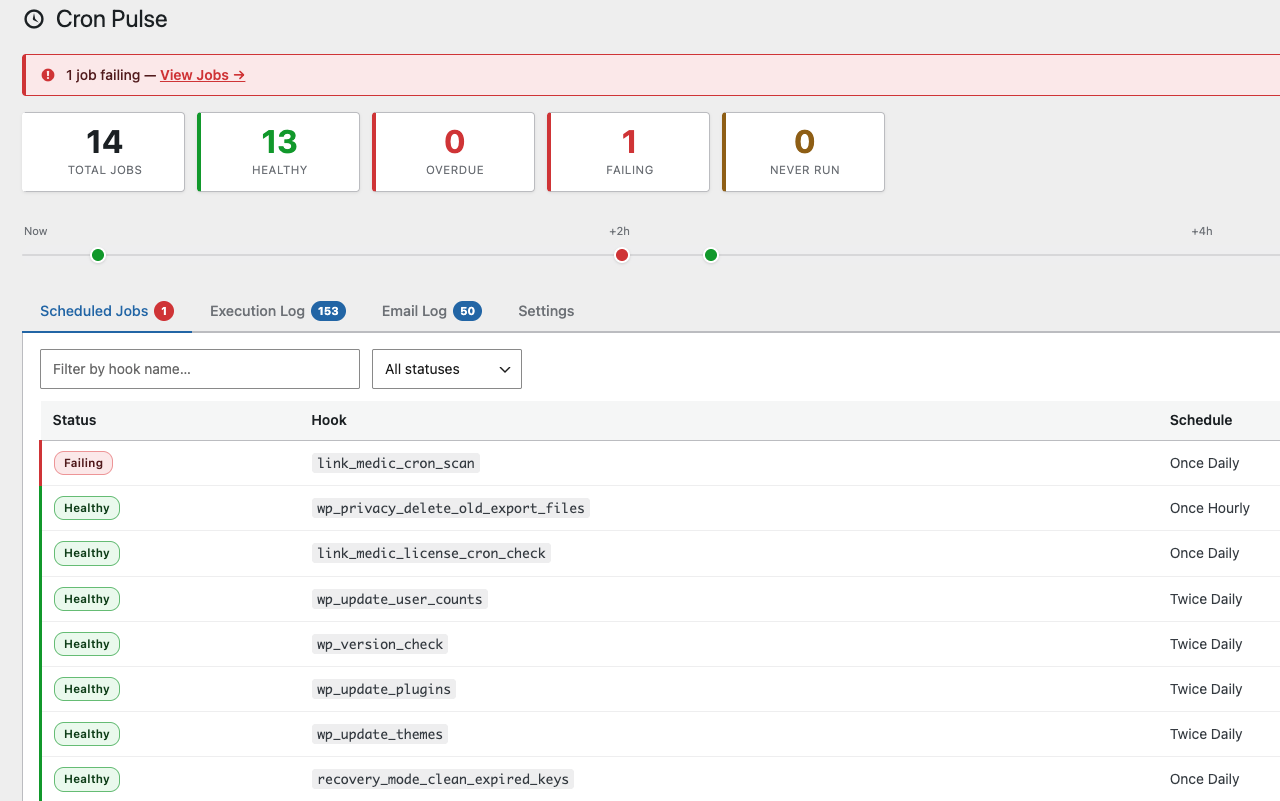
Cron Pulse adds a clean dashboard under Tools Cron Pulse that shows everything you need at a glance:
Features
- Scheduled Jobs table — hook name, recurrence schedule, next run time, last run time, execution duration
- Status indicators — Healthy / Overdue / Failing / Pending color coding so problems jump out immediately
- Overdue detection — instantly see jobs that should have fired but haven’t
- Admin bar badge — a small warning indicator on every wp-admin (and front-end) page when something needs attention, so you don’t have to remember to check the dashboard
- Run Now — manually trigger any cron hook with one click (great for testing)
- Unschedule — delete a stuck or duplicate scheduled event straight from the dashboard
- Sortable columns and pagination — click Next Run or Duration to sort; 25 jobs per page on sites with large schedules
- Duration sparkline — tiny trend line per hook so a creeping-up execution time is visible before it becomes a timeout
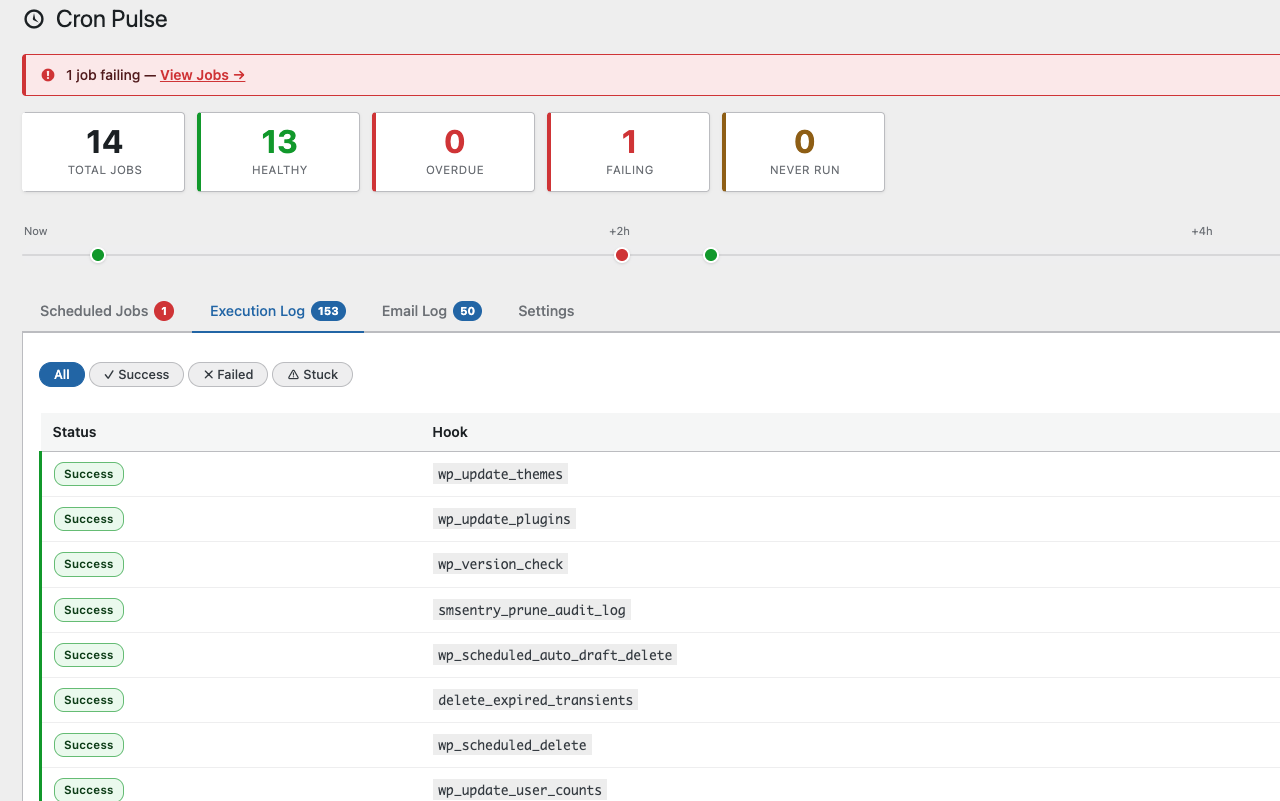
- Execution Log — persistent log of run history with duration and pass/fail status; retention is configurable
- Hook and status filters — search by hook name or narrow the table to just Overdue/Failing/Healthy/Never Run
- DISABLE_WP_CRON warning — alerts you when automatic cron execution is disabled
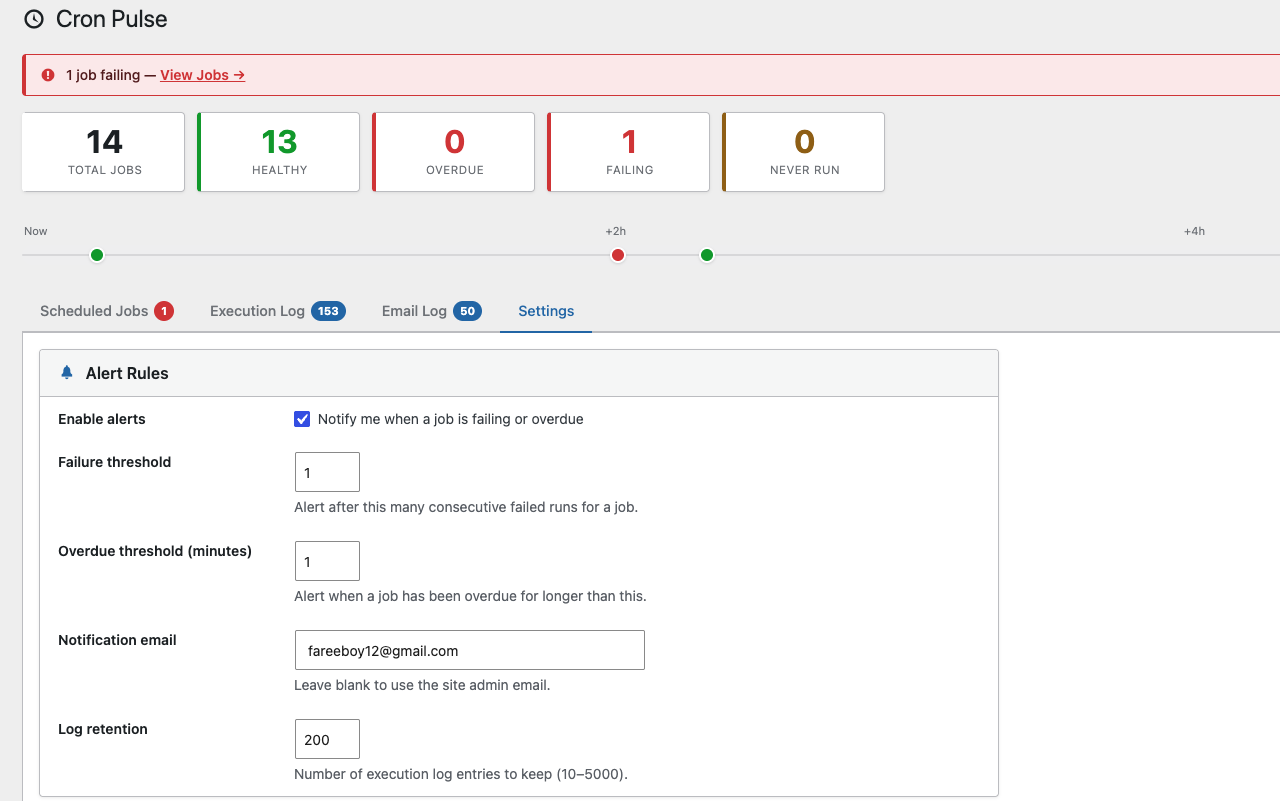
- Email and webhook alerts — get notified after N consecutive failed runs or when a job has been overdue too long, with optional per-job thresholds and a one-click snooze for incidents you already know about. Webhook payloads work directly with Slack and Discord, no relay needed — setup instructions are built into the Settings tab
- Built-in SMTP settings — route alert emails through your own mail provider instead of the server’s default mail() function, no separate SMTP plugin required
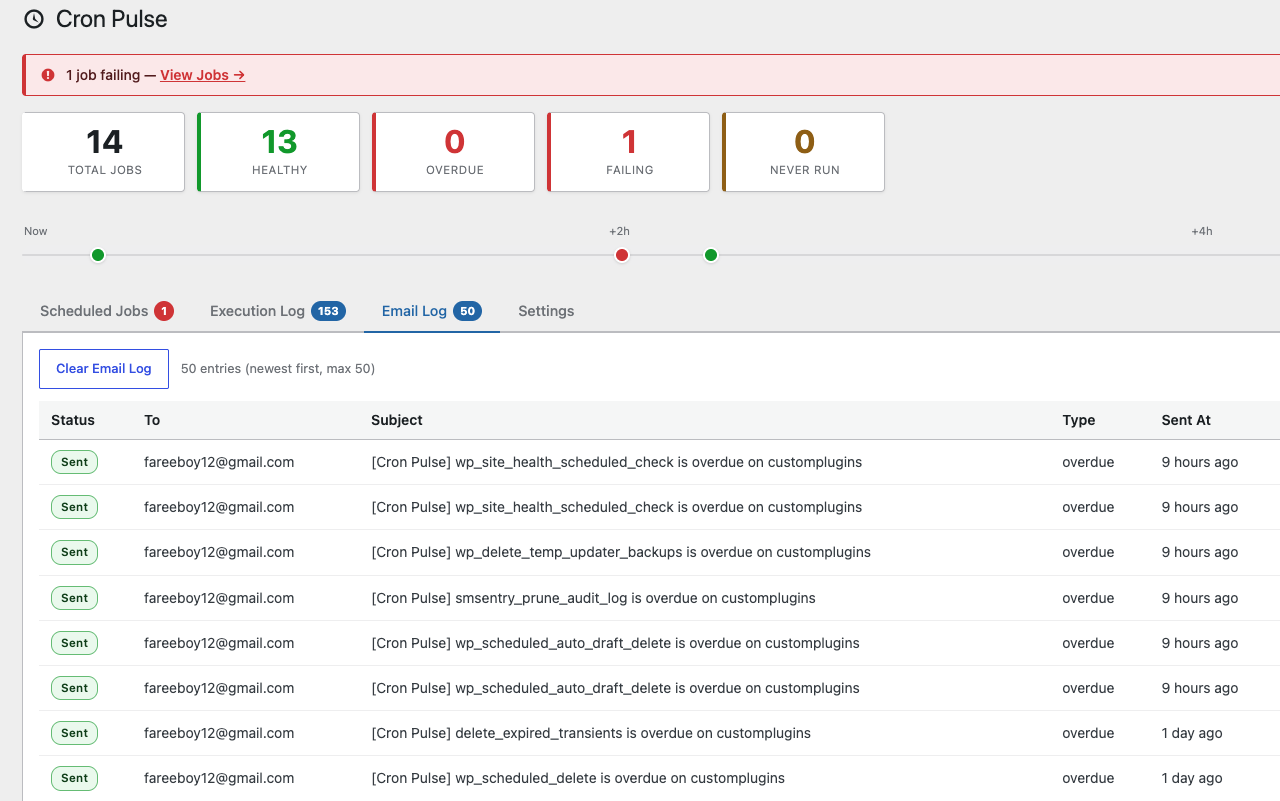
- Email Log — see every alert/test email Cron Pulse has sent, with delivery status and the underlying error if one failed
- Email Debug Log — the raw SMTP conversation (connection, TLS, auth, server responses) for diagnosing delivery problems beyond a generic failure message — credentials are never written to it
- Send Test Email / Send Test Webhook — confirm your notification settings actually work before you need them
- WP-CLI support —
wp cronpulse statusfor scripting health checks across sites - REST API —
GET /wp-json/cronpulse/v1/statusfor remote dashboards, authenticated like any other WP REST route - Zero external dependencies — pure PHP and vanilla jQuery
Who is this for?
- WordPress developers debugging cron-based features
- Agencies maintaining multiple client sites
- Enterprise teams needing visibility into scheduled background tasks
- Anyone tired of checking wp-cron manually or reading cryptic log files
Privacy
This plugin stores cron execution data (hook name, timestamp, duration) in the WordPress options table. No data is sent externally unless you explicitly configure a webhook URL under alert settings, in which case alert payloads are POSTed to that URL. The REST API endpoint is read-only and pull-based — nothing is sent anywhere on its own. If you enable SMTP, your SMTP credentials are stored in the WordPress options table, same as any other plugin setting — no third-party service receives them except the SMTP server you configure. The email log stores recipient addresses and subjects for emails Cron Pulse has sent. All data is deleted on plugin uninstall.
Screenshots
Installation
- Upload the
cronpulsefolder to/wp-content/plugins/ - Activate via Plugins Installed Plugins
- Navigate to Tools Cron Pulse
FAQ
-
Why does a job show as “Overdue”?
-
It means the scheduled run time has passed but the job hasn’t fired yet. This can happen when
DISABLE_WP_CRONis set inwp-config.php, or when your site has low traffic and the WP-Cron system-tick hasn’t triggered. -
Does “Run Now” advance the next scheduled run time?
-
No. It fires the hook’s callback functions directly without modifying the cron schedule. Use it for testing or manual one-off execution.
-
Will this slow down my site?
-
No. The tracker hooks fire only during cron execution (not on regular page loads) and the overhead is limited to a transient read/write per cron event.
-
Where is the log stored?
-
In the WordPress options table under the key
cronpulse_execution_log. The entry cap defaults to 200 and is configurable from the Settings tab (10–5000). It’s cleared on uninstall. -
Is it compatible with Action Scheduler or WooCommerce?
-
Cron Pulse tracks jobs registered through the standard WordPress
wp_schedule_event()/_get_cron_array()API. Action Scheduler uses its own queue system and is not covered. -
How do I authenticate against the REST endpoint?
-
The same way as any other WordPress REST route: a logged-in browser session (cookie + nonce), or an Application Password for external tools — Users Profile Application Passwords. The requesting user needs the
manage_optionscapability. -
What does “Snooze” do?
-
It acknowledges the current incident for that hook so no further alert is sent for it, without turning off alerts globally. The moment the job recovers and later fails (or becomes overdue) again, alerting resumes normally for that new incident.
-
Why does the admin bar badge sometimes not appear right away?
-
It’s evaluated on every page load along with everything else the plugin tracks, so it only updates when you load a page — there’s no background process polling for it.
-
Why would I need the SMTP settings?
-
Many hosts either don’t have PHP’s mail() function configured at all, or send through it in a way that gets flagged as spam (no SPF/DKIM alignment, generic “From” address). Configuring SMTP with your own mail provider’s credentials routes through a real authenticated mail server instead, without needing a separate SMTP plugin. Use “Send Test Email” after saving to confirm it’s actually working.
-
Where is the email log stored, and what’s in it?
-
In the WordPress options table under the key
cronpulse_email_log, capped at the last 50 entries. Each entry has the recipient, subject, type (alert/test), delivery status, and the underlying error message if it failed. Cleared on uninstall, or anytime via the Clear Email Log button. -
“Failed to send” isn’t telling me enough — how do I dig deeper?
-
Check the Email Debug Log on the Email Log tab. When SMTP is enabled it captures the actual SMTP conversation — connection attempt, TLS handshake, AUTH exchange, and the mail server’s own response — for every send. It’s a separate file under
wp-content/uploads/cronpulse-logs/email-debug.log(protected from direct web access), not the options table, since a raw protocol transcript doesn’t belong in the database. Login credentials are redacted before anything is written, regardless.
Reviews
ഈ പ്ലഗിന് റിവ്യൂകൾ ഒന്നുമില്ല.
Contributors & Developers
“Cron Pulse” is open source software. The following people have contributed to this plugin.
Contributors
Translate “Cron Pulse” into your language.
Interested in development?
Browse the code, check out the SVN repository, or subscribe to the development log by RSS.
Changelog
1.1.0
- New: Alert banner above the dashboard when jobs are failing or overdue — dismissible per session
- New: Upcoming schedule strip showing the next 8 hours of scheduled runs as a visual timeline
- New: Expandable job rows — click any row for inline details (error message, sparkline, actions); failing/overdue rows pre-expanded
- New: Status chips (pill badges) throughout — replaces the small dot + plain text pattern
- New: Execution log filter strip — one-click filter for All / Success / Failed / Stuck
- New: Duration bars in the execution log — proportional mini bars give a visual sense of relative run time
- New: Inline error expansion in the Email Log — click a failed row to see the error without leaving the tab
- Improved: Summary cards now have colored left borders and show “overdue since” duration on the Overdue card
- Improved: Settings tab restructured into three sectioned cards (Alert Rules, SMTP, Webhook) for clarity
- Improved: Failed/stuck execution log rows now have a colored left border stripe matching their severity
1.0.0
- Initial release