
Description
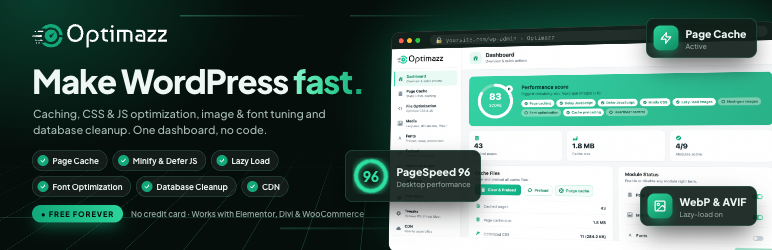
Optimazz is an all-in-one performance suite that applies the optimizations with the biggest impact on Core Web Vitals — automatically and safely. Every module is opt-in and reversible, and Optimazz never overwrites another caching plugin’s files.
Modules included:
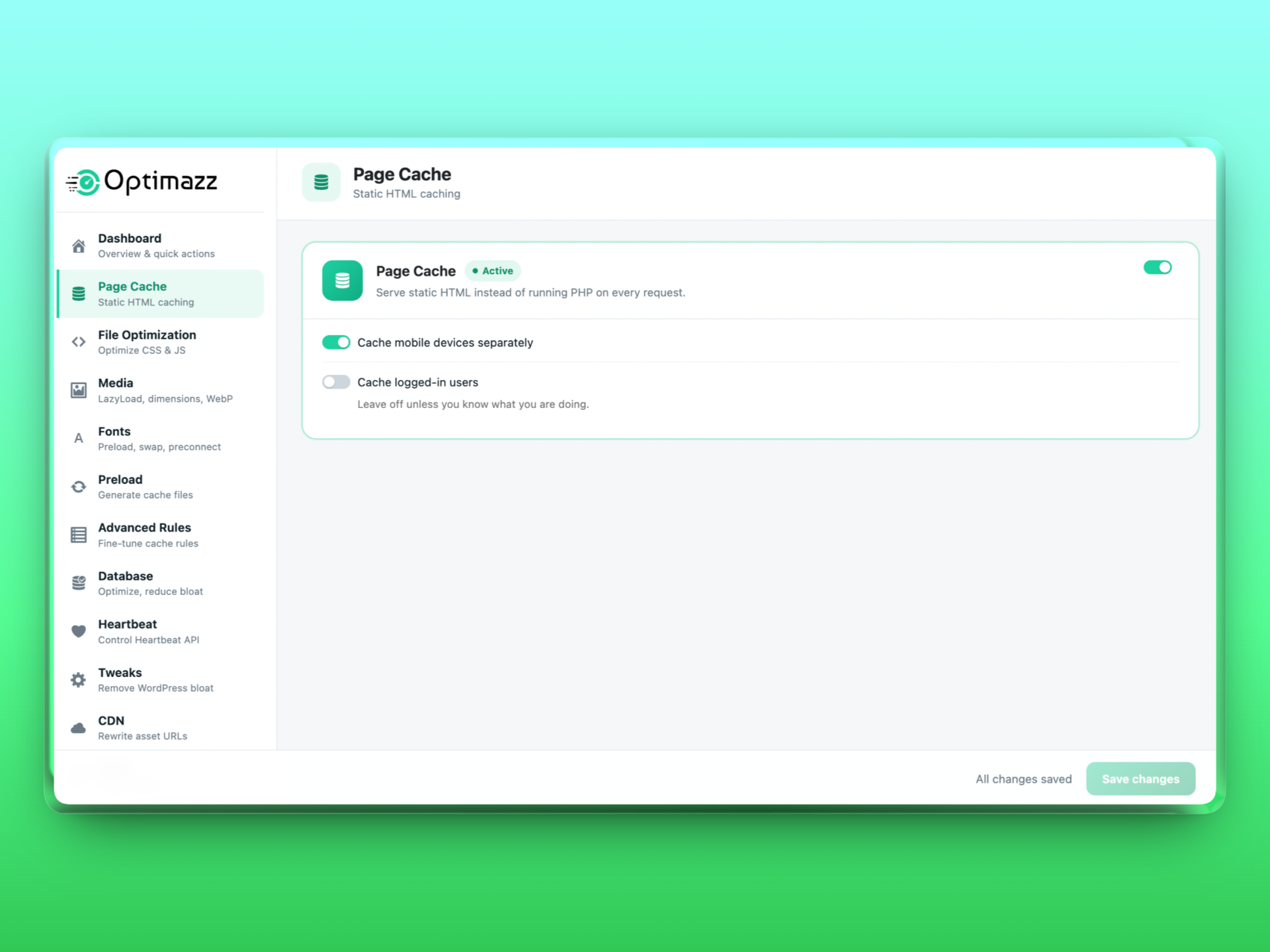
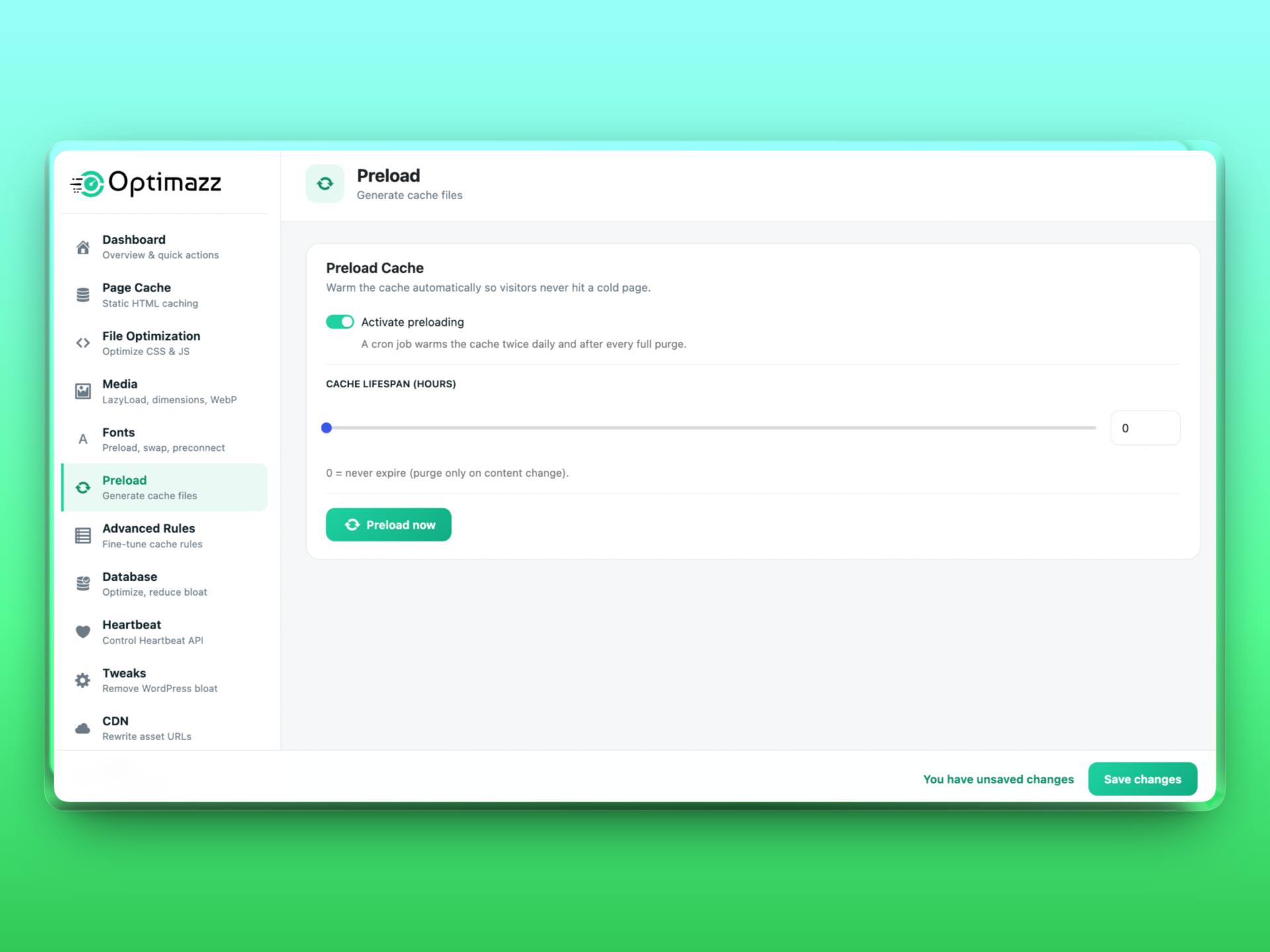
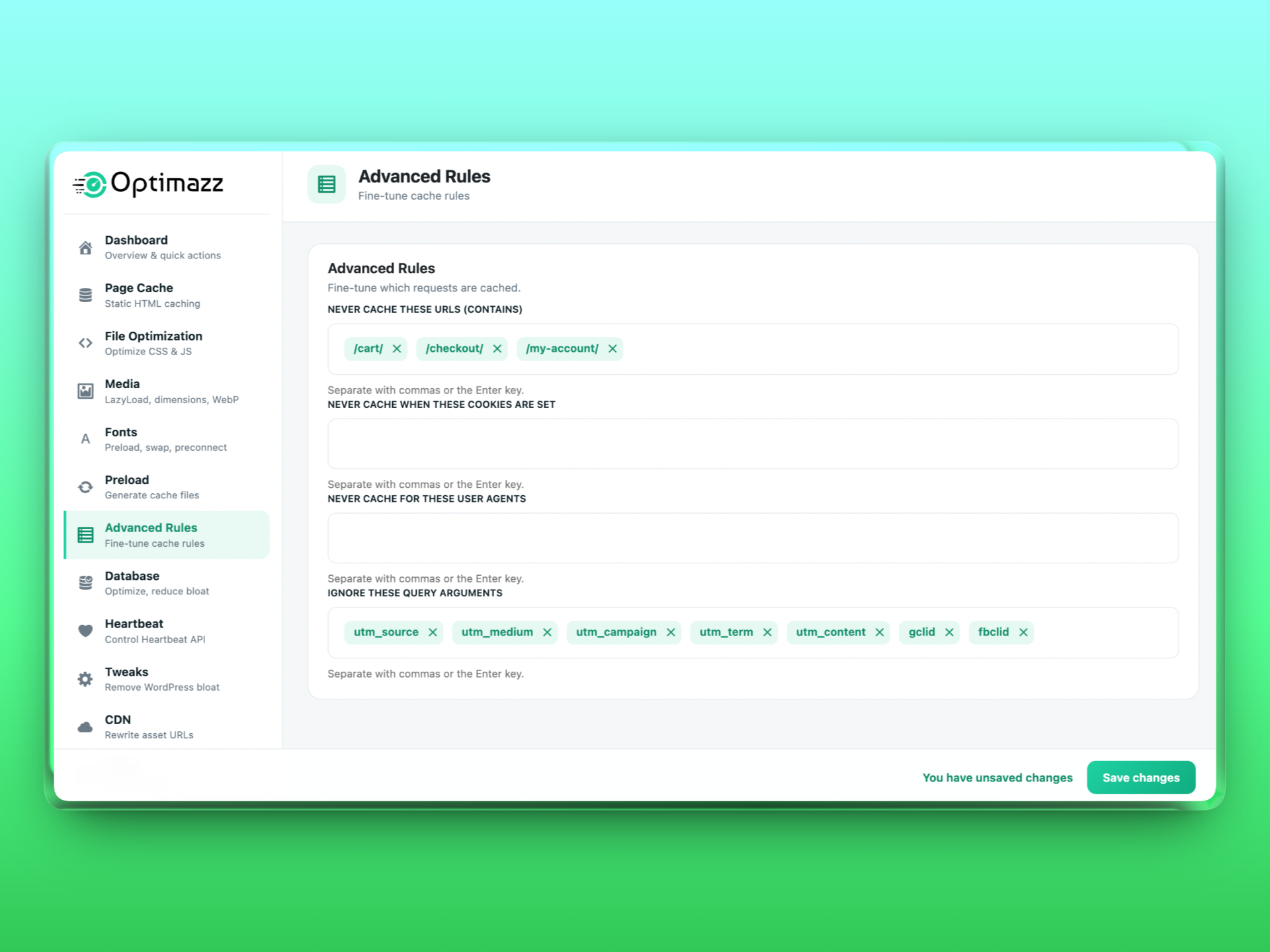
- Page Cache — serve static HTML instead of running PHP on every request, with smart exclusions (logged-in users, carts, query strings), automatic purging on content changes, and a cron-based cache preloader so visitors never hit a cold page.
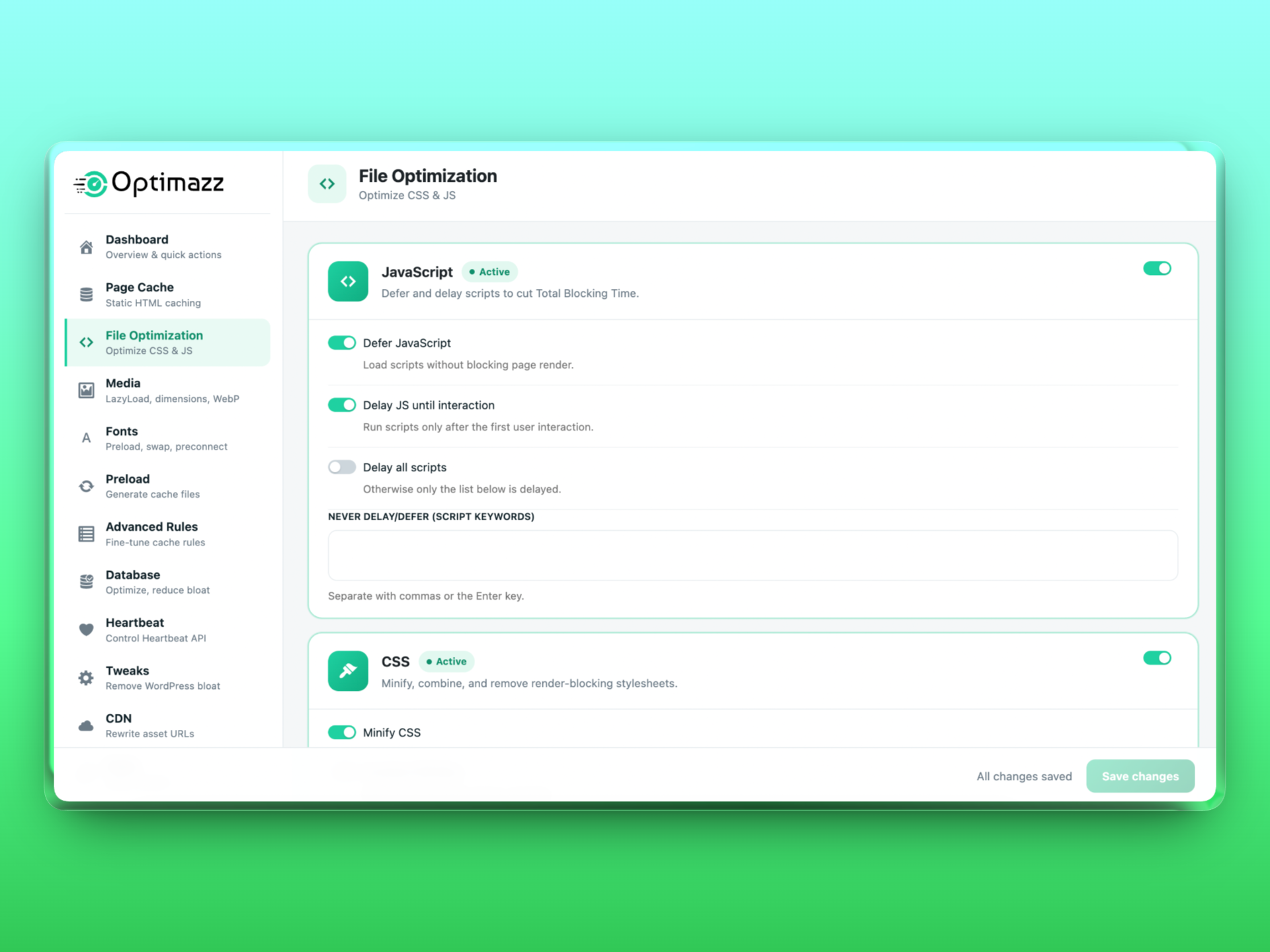
- JavaScript — defer scripts and delay them until the first user interaction to cut Total Blocking Time, with an exclusion list.
- CSS — minify, combine, and load CSS asynchronously to remove render-blocking stylesheets.
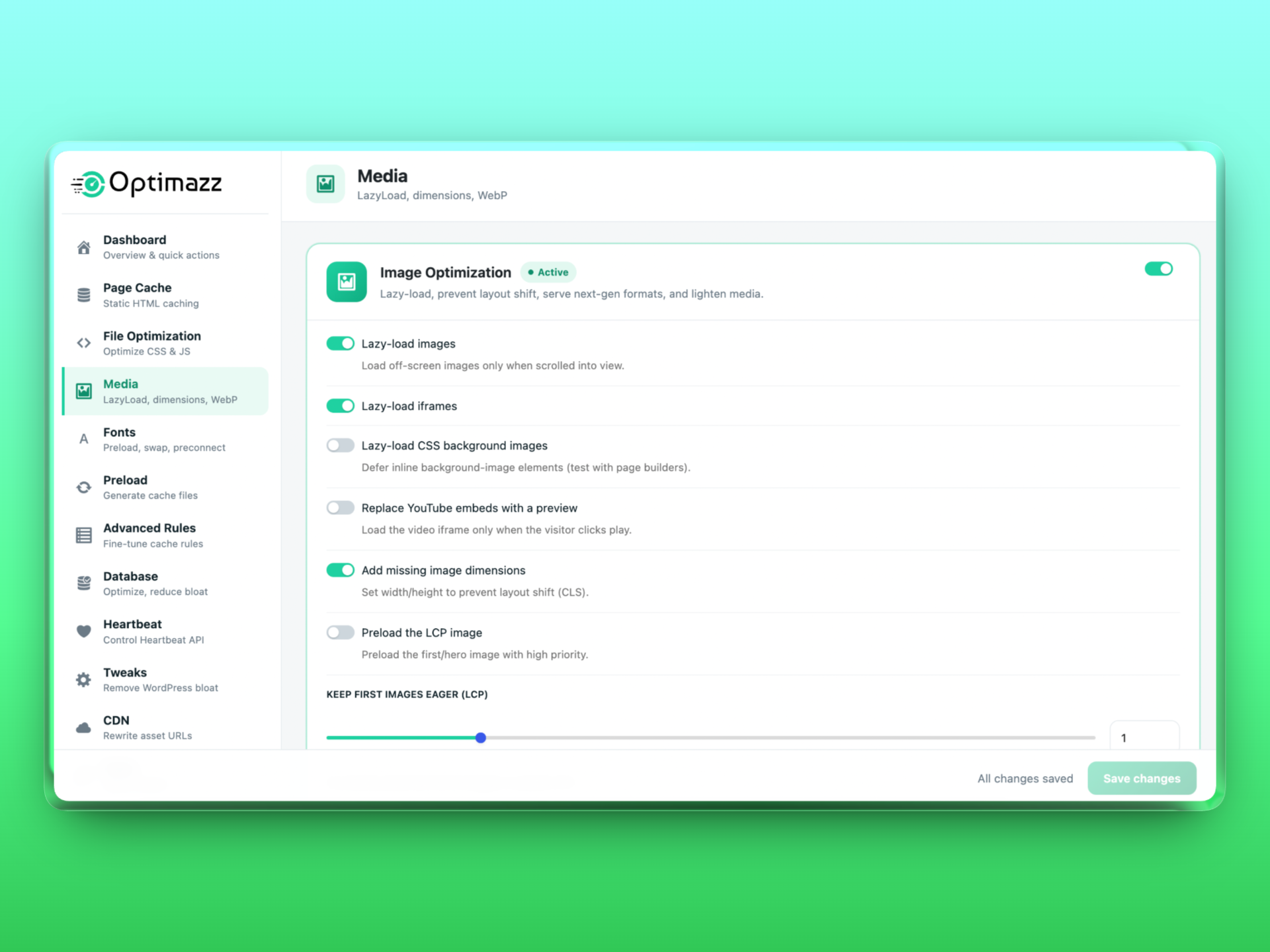
- Image Optimization — lazy-load images and iframes, add missing dimensions to prevent layout shift, generate and serve WebP/AVIF, bulk-compress your existing library, convert opaque PNGs to JPEG, and replace YouTube embeds with a click-to-load preview.
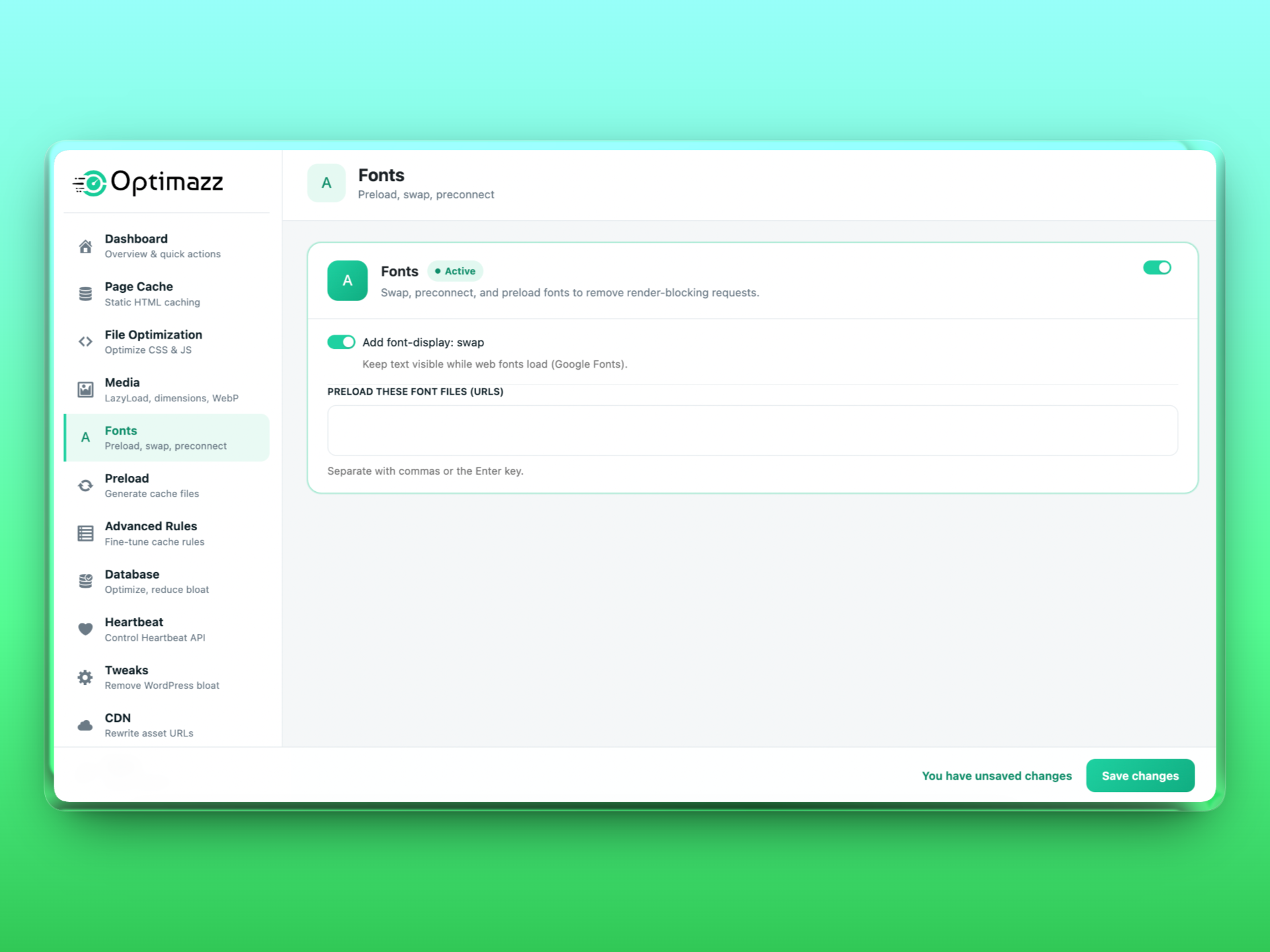
- Fonts — add
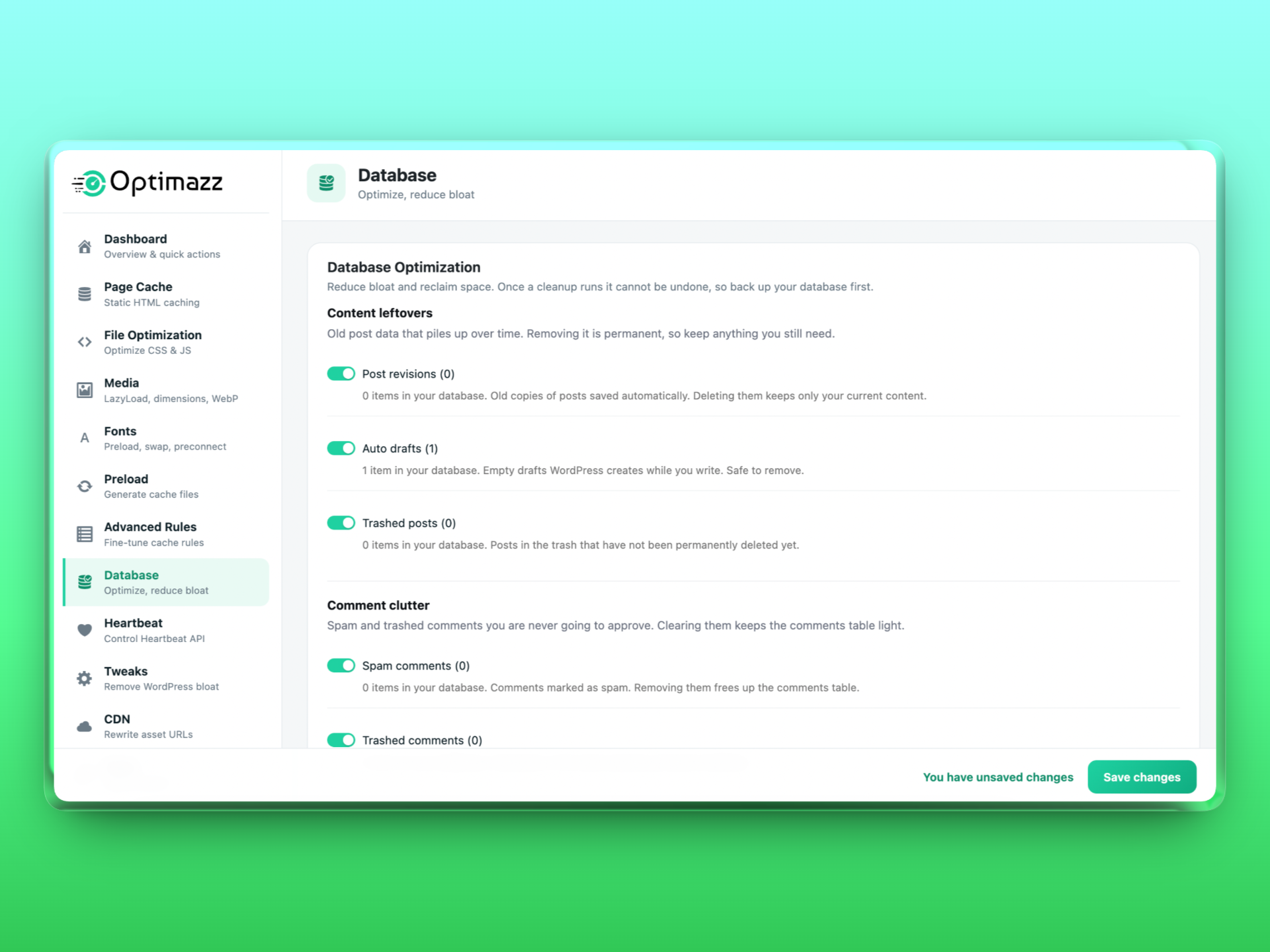
font-display: swap, preconnect to font hosts, and preload font files. - Database — clean revisions, auto-drafts, trashed posts, spam/trashed comments and expired transients, optimize tables, and schedule automatic cleanups.
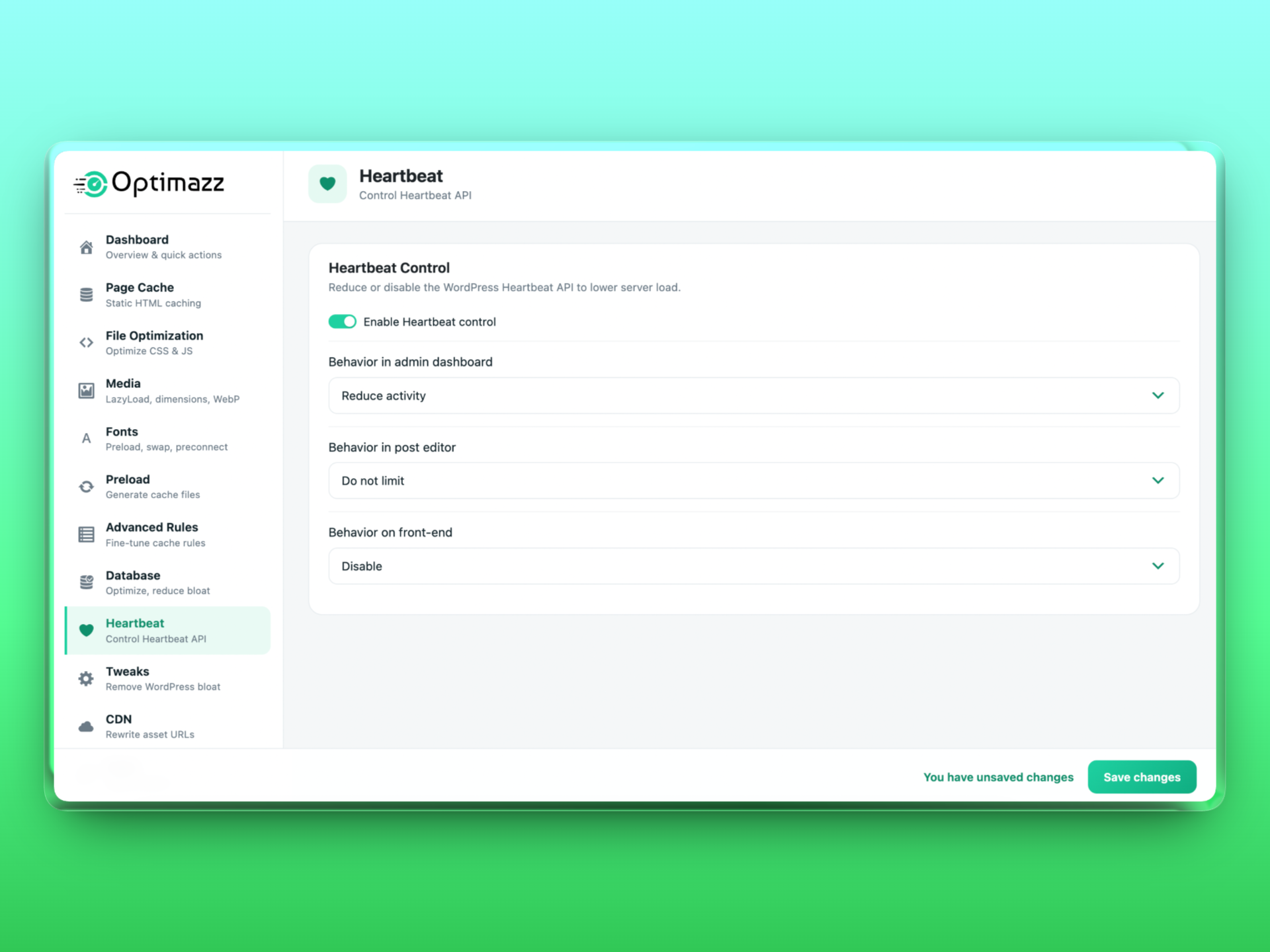
- Heartbeat — reduce or disable the WordPress Heartbeat API per context to lower server load.
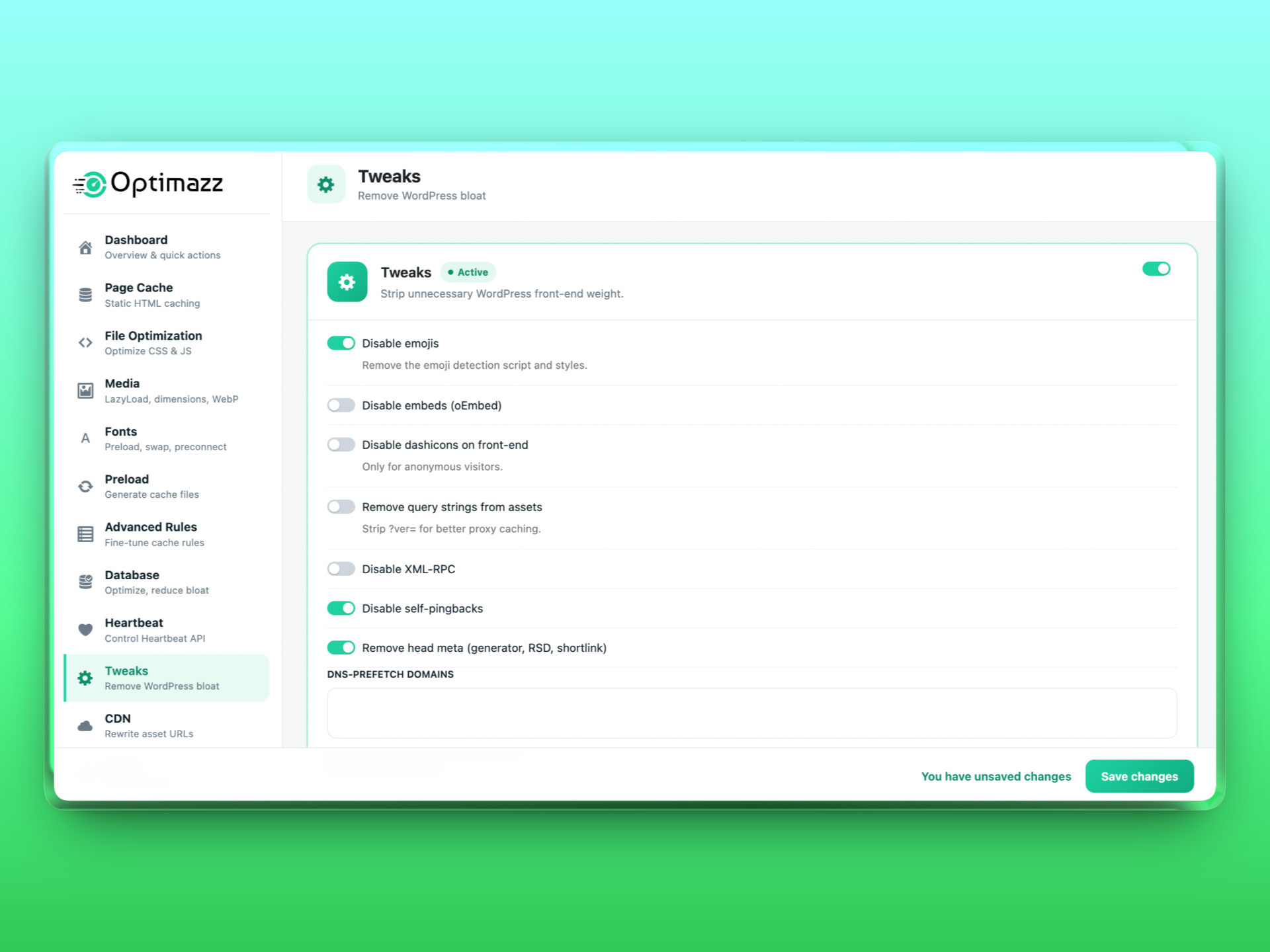
- Tweaks — disable emojis, embeds, dashicons, query strings, XML-RPC and pingbacks, and add DNS-prefetch / preconnect hints.
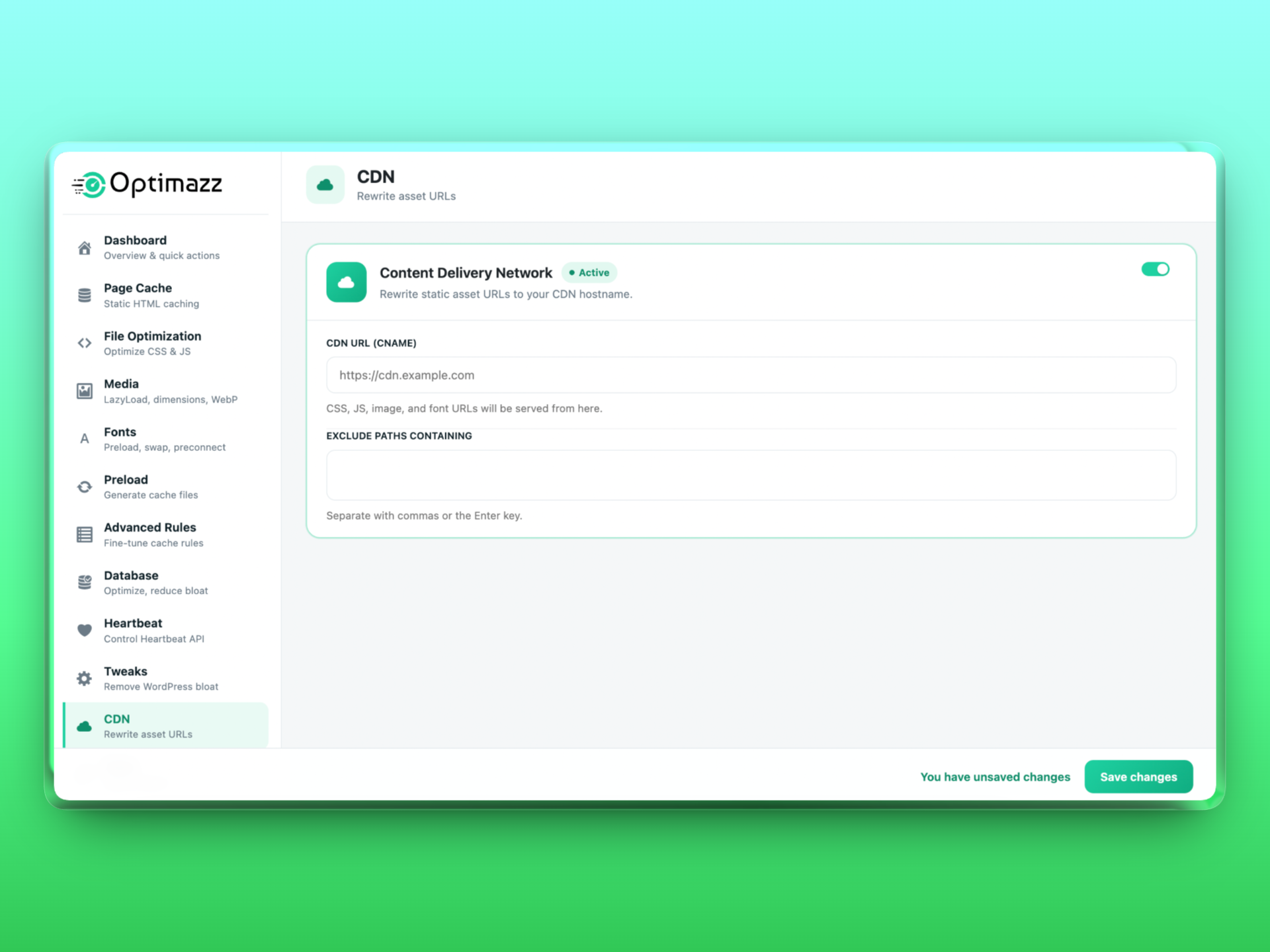
- CDN — rewrite static asset URLs to your CDN hostname.
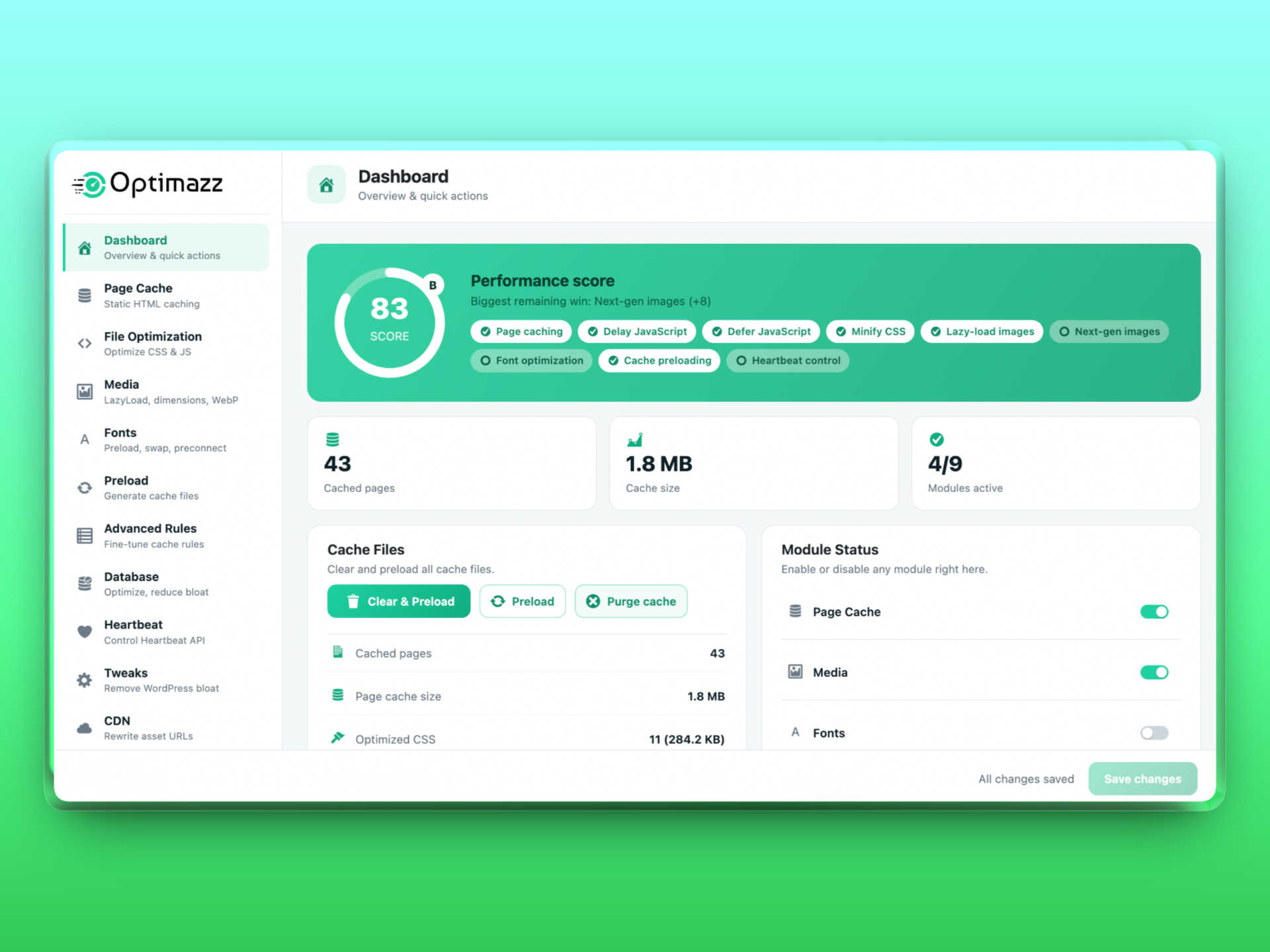
A live performance score on the dashboard shows which optimizations are active and your biggest remaining win.
Build process and source code
The admin interface is a React application. The human-readable source lives in the src/ directory shipped inside the plugin (src/index.js and src/index.scss), and the compiled, minified output lives in build/.
To regenerate the compiled files from source:
- Install dependencies:
npm install - Build:
npm run build
This uses the official @wordpress/scripts (webpack) toolchain — no custom or hidden build configuration. All source and build tooling are included in the plugin; nothing is obfuscated.
External services
Optimazz does not require any external service to function, and it works entirely on your own server by default. Two optional, admin-controlled features can reference third-party hosts:
-
Google Fonts optimization (Fonts module). If — and only if — your theme or another plugin already loads Google Fonts, and you enable the Fonts module, Optimazz adds
preconnectresource hints tofonts.googleapis.comandfonts.gstatic.comand can adddisplay=swapto the existing font URL. Optimazz does not add Google Fonts to a site that isn’t already using them, and it does not send any personal or site data — apreconnectis only a browser hint to open a connection earlier. The fonts themselves are requested by the visitor’s browser from Google, exactly as they were before the plugin, under Google’s terms: https://policies.google.com/terms and privacy policy: https://policies.google.com/privacy -
CDN rewriting (CDN module). If you enable the CDN module and enter a CDN hostname, Optimazz rewrites the URLs of your own static assets (CSS, JS, images) to that hostname so visitors’ browsers load them from your CDN. The CDN is a service you choose and configure; Optimazz sends no data to it itself and is not affiliated with any CDN provider. Consult your chosen CDN’s own terms and privacy policy.
Both features are off by default and take effect only after you explicitly enable them.
Screenshots
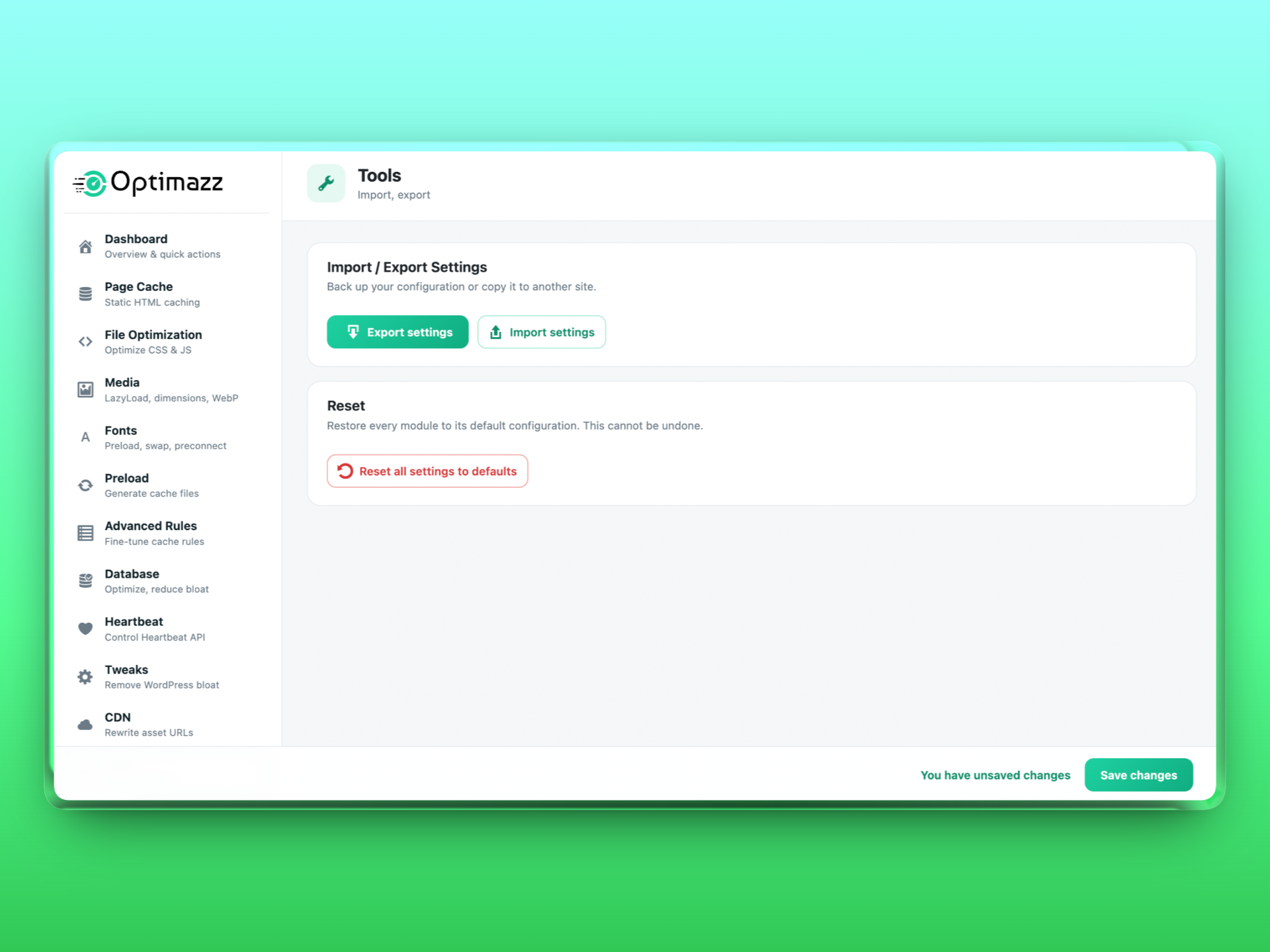
Installation
- Upload the
optimazzfolder to/wp-content/plugins/, or install it from the Plugins screen. - Activate the plugin through the Plugins menu in WordPress.
- Open Optimazz in the admin menu and enable the modules you want.
FAQ
-
Does Optimazz work on WordPress multisite?
-
Yes. Network-activate it, then switch page caching on for every site in Network Admin Optimazz (super admins only). Each site gets its own cache and keeps its own settings and cache exclusions. You can also activate Optimazz on individual sites only; then only those sites are cached.
-
Does Optimazz work alongside another caching plugin?
-
Optimazz will not overwrite another caching plugin’s
advanced-cache.phpdrop-in. To use Optimazz page caching, deactivate any other page-caching plugin first. The other (non-caching) modules work alongside most plugins. -
Will page caching work on my host?
-
Page caching needs
WP_CACHEto be defined, which Optimazz adds towp-config.phpautomatically. Ifwp-config.phpis not writable, Optimazz shows a notice with the line to add manually. -
Is it safe to delay JavaScript?
-
Delay-until-interaction is the biggest speed win but can affect scripts that must run before interaction. Start with “Delay” on and “Delay all” off, then add any problematic script keywords to the exclusion list.
-
Does converting PNG to JPEG lose my originals?
-
Only opaque PNGs are converted, the original is optionally backed up to
uploads/optimazz-backup, and the conversion is rolled back if anything fails. -
Does the plugin phone home or collect data?
-
No. Optimazz does not track users, register accounts, or send any of your site’s or visitors’ data to Optimazz servers. See the “External services” section for the only optional third-party hints the plugin can add.
-
Those small inline fragments (the delay-JavaScript loader, critical/async CSS, the lazy-load helper and LCP preload hints) are the actual optimization output that Optimazz writes into your front-end HTML. They are the product of the plugin’s work, not the plugin’s own asset loading — a delay-until-interaction loader cannot be enqueued as an external file. The admin interface and all of the plugin’s own assets are loaded normally through the WordPress enqueue functions.
Reviews


Contributors & Developers
“Optimazz – Website Optimization and Speedup” is open source software. The following people have contributed to this plugin.
Contributors
“Optimazz – Website Optimization and Speedup” has been translated into 1 locale. Thank you to the translators for their contributions.
Translate “Optimazz – Website Optimization and Speedup” into your language.
Interested in development?
Browse the code, check out the SVN repository, or subscribe to the development log by RSS.
Changelog
1.1.1
- Security: CSS optimization no longer reads a stylesheet that a PHP script generates (dynamic CSS) as a file — that could copy the script’s source code into the public optimized CSS. Only real static files (.css, .js, images, fonts) are read.
- Security: hardened cache folder names and the Critical CSS field against crafted input.
- Improved: one database query less on every page load that isn’t served from the cache.
- Improved: right-to-left languages (Arabic, Hebrew, Persian, Urdu and others) now get a mirrored Optimazz admin screen, and file sizes read correctly in them. Two error messages that were English-only are now translatable, and the translation template includes every string.
1.1.0
- Fixed: Google Fonts never loaded on sites whose theme or plugin requests them in the old weight format through the new Google Fonts address (for example “Open Sans:400,700” or “w400,700”). Google rejects those requests, so the font was missing while the broken stylesheet still held back the first paint on mobile by most of a second. Optimazz now repairs them into a valid request.
- New: Google Fonts load without blocking the page (on by default, Fonts settings). With font display Swap or Fallback the page appears right away in a fallback font and switches when the web font arrives, instead of waiting for Google first. With Optional (zero layout shift) the stylesheet still loads first, so text never shifts.
- Improved: sites using Jetpack’s Site Accelerator load WordPress core stylesheets from c0.wp.com, which Optimazz used to skip as external, so they stayed render-blocking. When the version matches your WordPress, they are now minified, combined and loaded like local files.
- Improved: more chat widgets are delayed until the visitor interacts — OpenWidget, Zendesk, Drift, Freshchat / Freshworks, JivoChat, Smartsupp and Small Chat — cutting mobile Total Blocking Time.
- New: full multisite support. Network-activate Optimazz and manage page caching for the whole network in Network Admin Optimazz: switch it on once, choose mobile and logged-in caching, cache lifetime, browser-cache rules and automatic preload, and see every site with its cached pages and its own Purge and Preload buttons. Each site gets its own cache — on subdirectory and subdomain networks — keeps its own exclusions (Advanced Rules) and all its other Optimazz settings, and can purge and preload its own pages.
- Improved: on multisite only the network administrator controls the files every site shares (wp-config.php, advanced-cache.php, .htaccess); a site’s own settings never change them, so one site can’t switch caching on or off for the others.
- Fixed: before this version, on multisite one site’s settings controlled caching for every site, only one site of a subdomain network was actually cached, any site administrator could rewrite wp-config.php and .htaccess, and deactivating Optimazz on one site removed the cache for the whole network.
- Fixed: deleting Optimazz from a multisite network only cleaned up the main site; settings, scheduled tasks, image data and generated CSS of the other sites were left behind. Uninstall now cleans every site.
- Fixed: on sites using plain permalinks (addresses like ?page_id=5) the “Cached pages” count showed 1 no matter how many pages were cached.
- Improved: the preload summary now names the home page and counts each address once, so its parts add up to the total.
- Improved: changing a cache rule (for example a new exclusion) now also clears pages that were cached under the old rules.
- Improved: the Changelog section of this readme now lists recent versions only; the complete history is in changelog.txt.
1.0.24
- Fixed: the automatic preload (after saving settings, and the scheduled one) only warmed the first 50 addresses, so on bigger sites it covered far fewer pages than a manual preload. It now warms the whole site in short background chunks — each continues where the last stopped, and only one runs at a time — so it never overloads the server or hits the PHP time limit.
- Improved: preloading is much faster — desktop and mobile copies are warmed at the same time, a manual preload warms several pages per step, and the page list is built once per run instead of on every step.
- Improved: the preload explains what it is warming, e.g. “Found 74 pages to warm: 10 pages, 11 posts, 18 products, 12 category and tag pages” — the total includes posts, products and archive pages, not only Pages. Page-builder template libraries (Elementor, Beaver Builder, Divi, Bricks …), WooCommerce cart / checkout / account pages and anything in “Never cache these URLs” are no longer in the list, since visitors never get them from the cache.
- Fixed: the preloader reported pages as “warmed” even when none were saved to the cache (e.g. “Warmed 114 / 121” while Cached pages stayed at 0), with no hint why. It now counts only pages that really reached the cache (“· 98 cached · 16 not cached”) — counted per page (desktop and mobile copies of one page count once), so it matches the “Cached pages” card, and when pages are not being cached it stops after a few and explains the exact reason and fix: another caching plugin owns advanced-cache.php, the drop-in or WP_CACHE is missing, a server or CDN cache (LiteSpeed, Cloudflare, Varnish …) answers before WordPress, a plugin sets DONOTCACHEPAGE, pages return an error status, the cache folder is not writable, or your exclusion rules match.
- Fixed: on sites behind a proxy, load balancer or Cloudflare (HTTPS ends at the proxy), cached pages were saved under an http address and never found again for https visitors. The real scheme is now read from X-Forwarded-Proto / CF-Visitor.
- New: if another caching plugin (WP Rocket, Seraphinite Accelerator, LiteSpeed Cache …) controls the cache drop-in while Optimazz page cache is on, a notice now appears on every admin screen — naming the plugin, with one-click “Deactivate it and use Optimazz” and “Use Optimazz for caching” buttons, or “Keep the other plugin” to hide it. Before, the Optimazz page cache silently stayed inactive unless you opened its Cache health panel.
- Improved: conflict detection now also recognises Seraphinite Accelerator, FlyingPress, WP-Optimize and NitroPack, and cache plugins installed under a renamed folder (e.g. a GitHub download).
- Improved: “Cache lifespan” and “Auto-preload” can now be changed right from the Dashboard (a dropdown on each row), and the preload row shows when the next run is due.
- Fixed: scheduled auto-preload often never ran on well-cached sites. WordPress only runs scheduled tasks when it loads, but cached pages are served without loading WordPress, so the preload quietly went overdue. When a preload is due, a cached page view now wakes WordPress’s scheduler in the background (after the page has been sent, at most once a minute).
- Fixed: the dashboard showed an overdue preload as “in 3 hours”; it now says “due now”, and a new “Last auto-preload” line shows when it last ran and how many pages it warmed (or that a firewall blocked it).
- New: choose how often the automatic preload runs — every hour, twice a day or once a day (Preload settings). Turning page caching off now also clears the preload schedule, and a notice explains when WP-Cron is disabled on the site.
- Fixed: switching a module on or off (or using Undo, Reset, or the post-update refresh) cleared the whole page cache and then left it empty, so the site ran uncached — and slow — until each page happened to get a visitor or the twice-daily preload ran. The cache is now rebuilt automatically straight after (when page cache and preloading are on).
- Fixed: switching Optimazz page caching off, or deactivating Optimazz, turned off WP_CACHE even when another caching plugin (e.g. WP Rocket) owned the cache drop-in, which silently disabled that plugin’s page cache. WP_CACHE is now only turned off when the drop-in was Optimazz’s own.
- Fixed: cache preloading stopped with a 403 error when a firewall such as the 6G/7G rules in All-In-One Security was enabled. The preloader identified itself as “Optimazz-Preloader”, and these firewalls block any visitor whose user-agent contains the word “loader”. It now identifies as “Optimazz-CacheWarmer” in the standard crawler format, which those rules allow. The user-agent can be changed with the new
optimazz_preload_user_agentfilter.
1.0.23
- Fixed: with WebP/AVIF serving on, some images (often the site logo) showed as broken on HTTPS sites whose content still used old http:// image addresses. Browsers upgrade a plain http:// image to https:// automatically, but block an http:// image inside a source — and never fall back. Next-gen image sources now always use https:// on HTTPS pages.
- Fixed: in responsive images, a size without a WebP/AVIF copy could be offered to the browser and show as broken; only sizes whose next-gen file exists are now listed.
- Fixed: tidier image markup — no attributes added after a self-closing slash, and no duplicate decoding/fetchpriority attributes.
- New: Google Fonts optimization (Fonts module). Page builders such as Elementor load every Google Font family as a separate request, each with every weight from 100 to 900 plus italics. Optimazz now merges them into a single request and loads only the weights and styles your pages actually use (weights 400 and 700 are always kept). On a typical Elementor site this turns three render-blocking requests into one and cuts the font CSS by more than half (measured: 170 KB down to 64 KB). Both options are on by default and can be switched off in the Fonts settings; requests that subset by text are never changed.
- Improved: the build tooling (
package.json) ships with the plugin again, so the admin interface can be rebuilt from the included source as described under “Build process and source code”. - Fixed: with the CDN module on, CSS minify/combine, WebP delivery and missing-image-dimension fixes were silently skipped, because the CDN rewrite ran before the other optimizations and they could no longer recognise your own files. The CDN rewrite now runs last, on the finished page.
- Improved: when the update safety check switches Safe Mode on to protect a site, it now keeps re-checking and switches Safe Mode back off by itself as soon as pages load correctly again, restoring full optimization (CSS combine, async CSS and JavaScript delay). Previously Safe Mode stayed on until someone turned it off manually, so a site could quietly run slower for a long time after a temporary problem. If pages break again within a day of being restored, Safe Mode stays on and the admin decides. Safe Mode that you switch on yourself is never changed automatically.
- Fixed: the update safety check now also recognises stylesheets served from your CDN hostname (when the CDN module is on), so a page that loads unstyled through the CDN is detected instead of being reported as healthy.
- Fixed: the “Optimazz Safe Mode is on” notice no longer lingers after Safe Mode was switched off via Undo last change, Reset or Import.
- Fixed: uninstalling Optimazz now removes all of its data, including the version marker, the safety-check state and its scheduled check, and the cached font-weight data.
1.0.22
- Fixed: on some hosts (certain LiteSpeed/WAF setups and managed hosts) pages loaded unstyled because the server does not serve — or routinely deletes — files under
wp-content/cache/, which is where Optimazz kept its generated CSS. Since the page HTML references those files by name, a page that could not load them rendered without styling. Optimazz now stores generated CSS underwp-content/uploads/optimazz/instead — the standard, always-served, persistent location page builders also use — so the stylesheets load reliably and are never wiped out from under a cached page. On update the page cache is refreshed automatically so pages pick up the new location with no manual step. - New: update safety guard. Shortly after the plugin updates, Optimazz quietly checks its own front page to confirm the optimized CSS actually loads. If it finds pages rendering unstyled — their generated stylesheets returning 404, usually because an external server or CDN cache is still serving old pages — it automatically switches on Safe Mode to keep the site working (pausing the risky CSS/JS transforms without changing your saved settings, so pages fall back to their original stylesheets) and shows an admin notice explaining what happened. After you clear your server/CDN cache and switch Safe Mode off from Tools, Optimazz re-checks and re-protects the site if anything is still broken — so an update can no longer leave a site visibly broken.
1.0.21
- Fixed: after updating, a site whose page cache was already populated could keep serving pages that loaded unstyled, until the cache was purged by hand. A plugin update never clears the page cache, so any HTML cached by an earlier version — still pointing at combined CSS/JS files that an older purge had removed — stayed in place and rendered without styling. Optimazz now clears the page cache automatically once, the first time it runs after an update, and re-aligns its caching drop-in; the generated CSS/JS assets are kept, so pages come back fully styled on the next visit with no manual purge needed. This completes the 1.0.20 fix for existing installs.
1.0.20
- Fixed: pages could intermittently load completely unstyled when CSS minify/combine was on together with page caching (or a server-level cache such as LiteSpeed). Optimazz names each generated CSS/JS file by a content hash and embeds those filenames in the cached HTML — but purging the page cache also deleted those generated files, so any HTML still held in a cache (Optimazz’s own, a CDN’s, or the server’s) pointed at stylesheets that had been removed, returning 404 and rendering the page without styling until they regenerated. Purging the page cache now preserves the hashed CSS/JS assets (they are self-invalidating — a source change produces a new filename), keeping the HTML and its stylesheets consistent.
1.0.19
- Fixed: page caching could silently stop working after a plugin update or a manual re-upload, making the whole site slow (every request fell back to full PHP). The advanced-cache.php drop-in embeds the path to the cache engine, and if the plugin folder was moved or recreated by the update, that path went stale — but Optimazz still recognised the drop-in as its own and never repaired it. Optimazz now detects a stale drop-in and rewrites it with the correct path automatically, and the drop-in itself falls back to the standard plugin location so caching keeps working immediately. If you were affected, the cache heals itself on the first page view after updating.
- Improved: the per-request cache readiness check no longer spins up the WordPress filesystem API just to read its own drop-in, removing needless overhead on every uncached request.
1.0.18
- New: Safe Mode (Tools screen). If a theme or page builder looks broken after you enable optimization, one toggle pauses just the riskiest transforms — combine CSS, async CSS, remove-block-CSS and JavaScript delay — while keeping page cache, minify, defer and lazy-load running. It changes nothing in your saved settings; those optimizations simply pause until you switch Safe Mode off, so recovery is instant and reversible. Filterable via
optimazz_safe_modeso a host can force it on during an incident. - New: Undo last change (Tools screen). Optimazz now keeps a one-step backup of your settings taken before every save, reset or Safe Mode toggle, so a single click restores the previous state — and undo is itself reversible (press it again to redo).
Older versions
The complete history (1.0.0 onward) is in changelog.txt, included with the plugin.